We’ve improved Zefort’s Search Automations to help you manage repetitive tasks more efficiently so you can focus on the work that actually needs your expertise.
Here’s a quick look at what’s new:
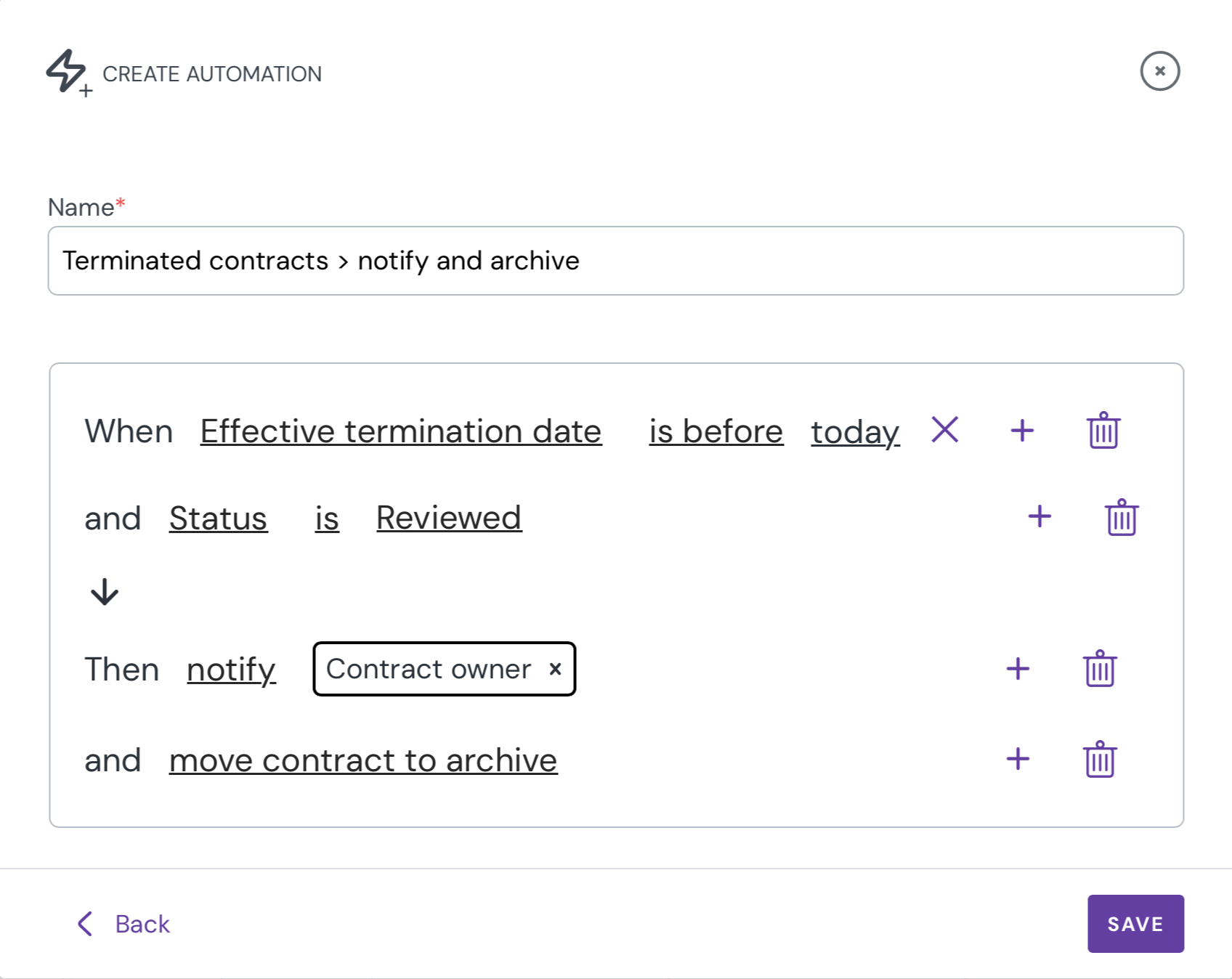
Stack your actions: Set multiple actions for a single automation. One rule can update a status, move contract to a selected binder, and notify a colleague all at once.
Automatic archiving: Keep your workspace organized by setting rules that automatically archive old or completed contracts.
Target the contract owner: Instead of naming a specific person, automatically notify the contract owner.
Control review statuses: Set automations to update contract statuses between “reviewed” and “not reviewed” based on your criteria.
Ready to see how it works? Check out the full support article here to start building your own.
Filter contracts with more flexibility
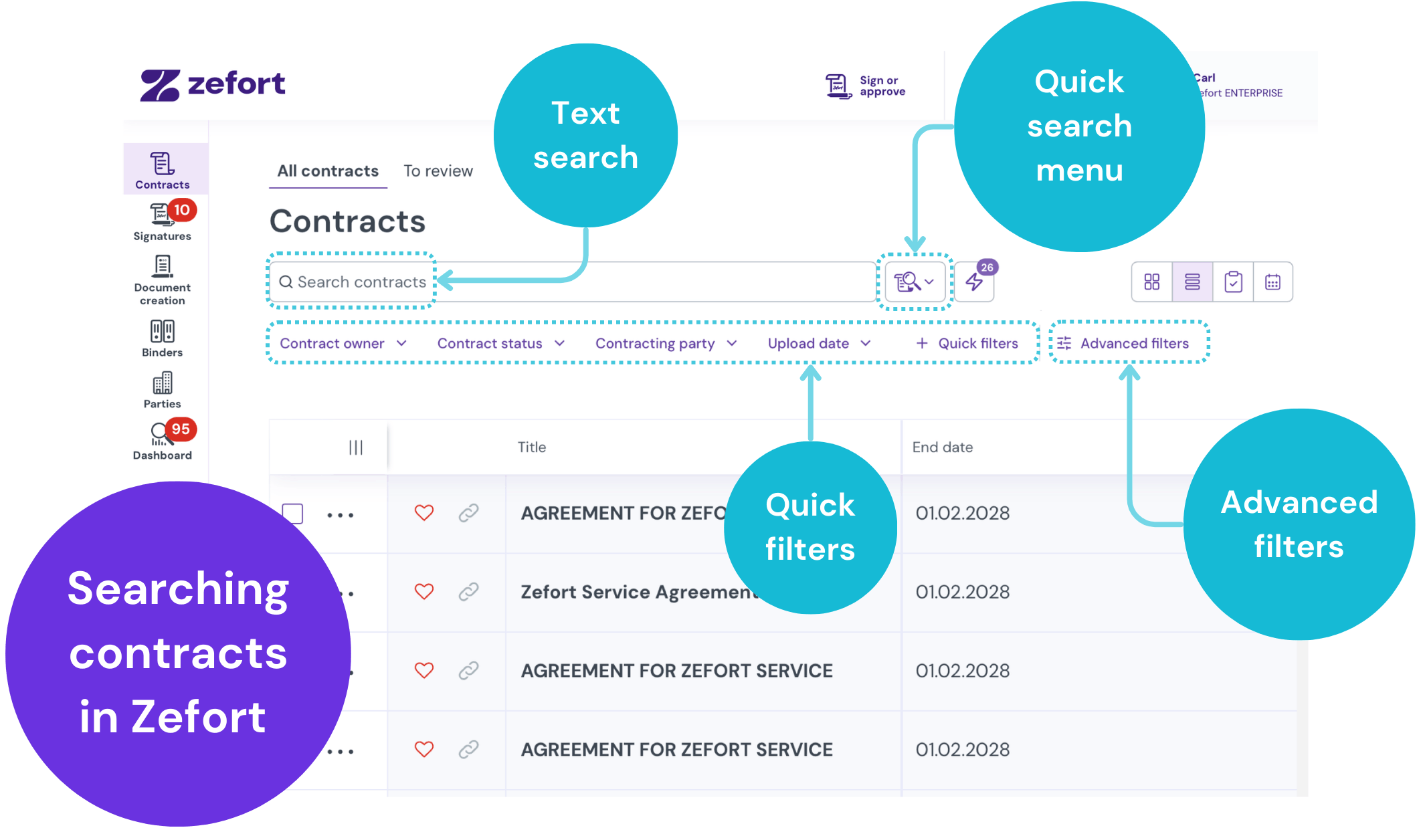
Finding contracts in Zefort is now faster and more flexible. You can combine filters more easily, access everything in one place, and get to the right data with fewer clicks.
All filters in one view
You no longer need to switch between tabs to find specific attributes. All available filters are now shown in a single, continuous list.
Use the search bar to jump directly to a filter, or scroll to explore your options. This makes it easier to combine filters and refine your results without interrupting your workflow.
Pin filters you use most
Keep your most important filters within reach. You can pin up to eight filters to your main view for quick access.
This is useful for frequently used criteria like expiration dates, contract types, or entities.
Select dates more easily
Updated date filters make it easier to define timeframes.
Whether you’re looking for contracts signed in a specific period or expiring soon, you can now select dates with fewer steps.
Save searches as before
You can still save your searches and reuse them anytime.
Once you’ve set up a filter combination, save it to return to the same results instantly.
Learn more
For a full guide, see our article on searching and finding contracts.
Stop the busywork: Meet your new AI agent, Search Automations
Tired of manually adding contracts to the right binder? Or forgetting to notify your legal team when a contract’s status is “Signed”? The new automation feature is here to handle this busywork for you.
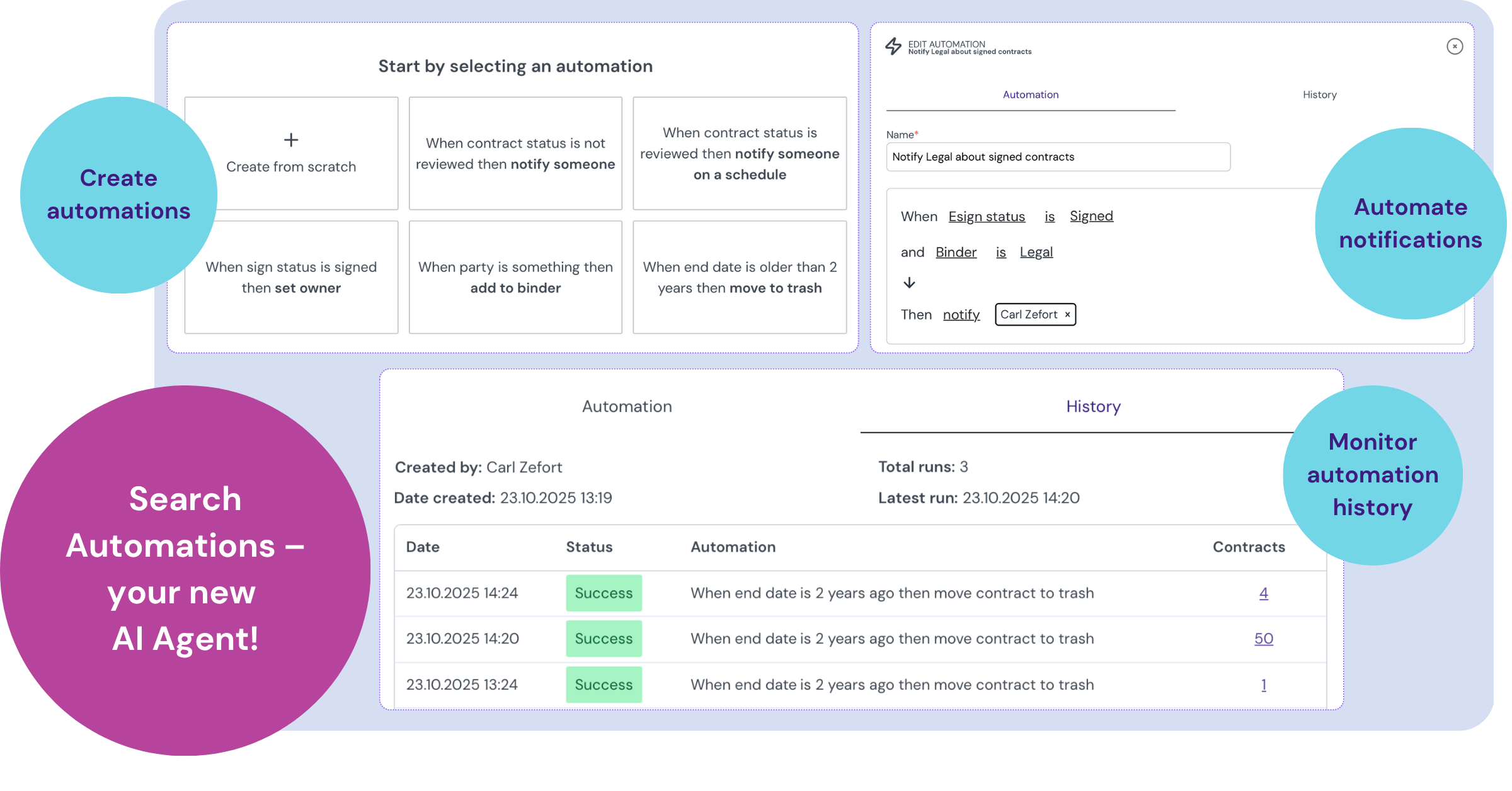
You can now set up simple “if this, then that” rules to save time and keep your contract archive consistent. For example, you can automatically:
- Set a contract owner once a contract is signed.
- Add a contract to a specific binder when a certain party is added.
- Notify a team member when a status needs review.
- Even move old contracts to the trash.
While admins can create powerful automations to update contract metadata, all users can use the feature to set up automated notifications – the new, improved way to stay on top of your contracts.
Ready to get started? Learn how to set up your first automation in our full support article Search Automations.
Zefort’s e-signing service, Zefort Sign, has been updated to support screen readers. This allows users to listen to contract details and complete the signing process using their device’s native screen reader technology.
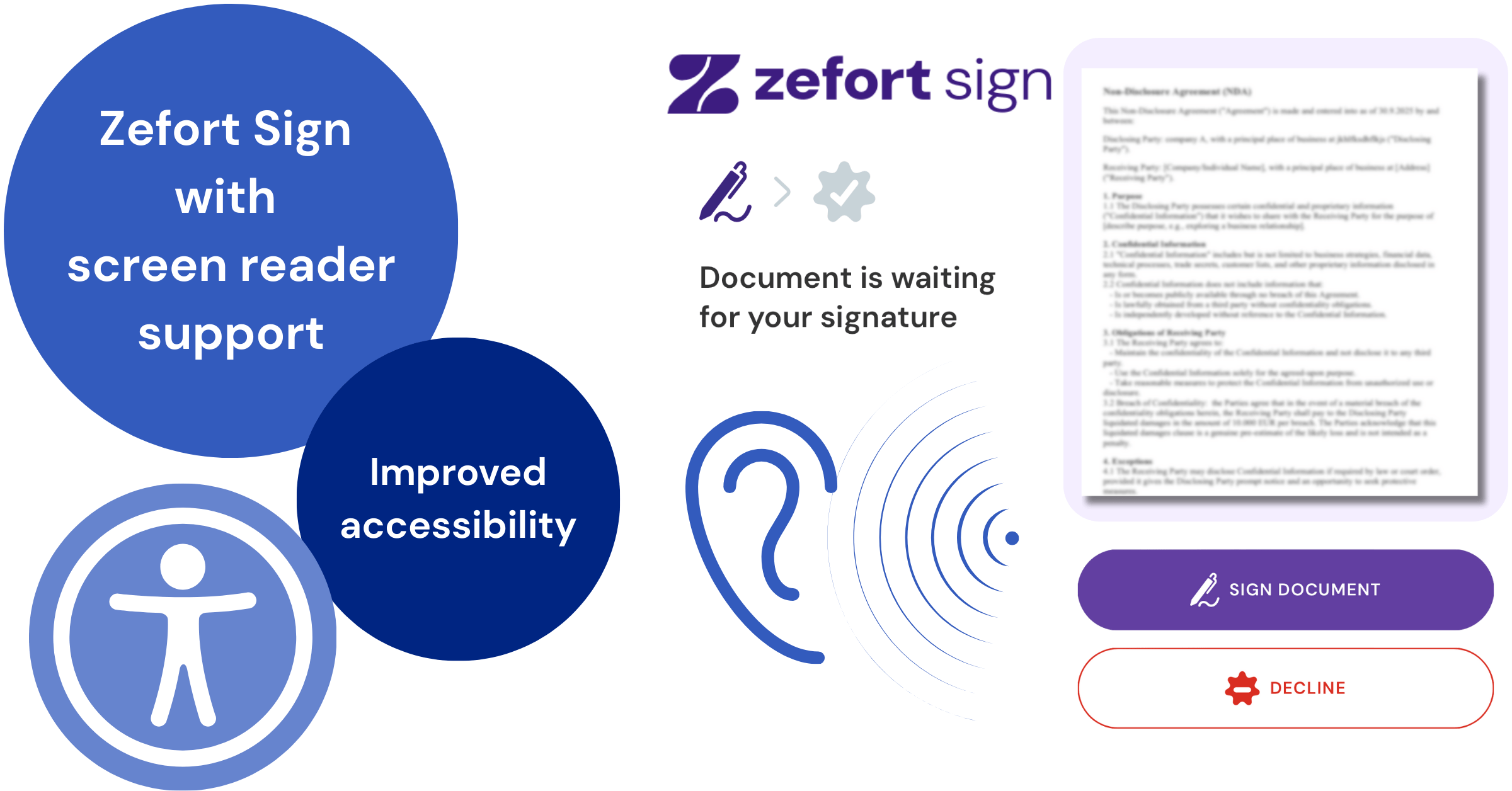
A more inclusive signing experience
With a screen reader activated, a user can navigate all page elements, including instructions and buttons. The system is designed to read the full text of the contract aloud. The “Sign” and “Decline” actions can be triggered via standard keyboard commands, allowing the process to be completed without requiring a mouse.
This improvement is part of our work to align with the European Accessibility Act. This update is the first phase of a broader initiative to improve accessibility across the Zefort platform, with further enhancements planned for the future.
How to use this feature
No changes are needed within Zefort to use this functionality. It is designed to work automatically with the screen reader that is built into your device.
To get started, simply activate the native screen reader on your computer or mobile phone. These tools are typically found in your device’s accessibility settings. Once enabled, open the Zefort Sign link to begin the accessible signing process.
Further information
For more information on accessibility and this new feature, please see the following resources.
To make your workflow in Zefort clearer, we’re simplifying how you find contracts ready for review. The separate Inbox is being replaced by a new To review tab, located directly on your Zefort contracts desktop.
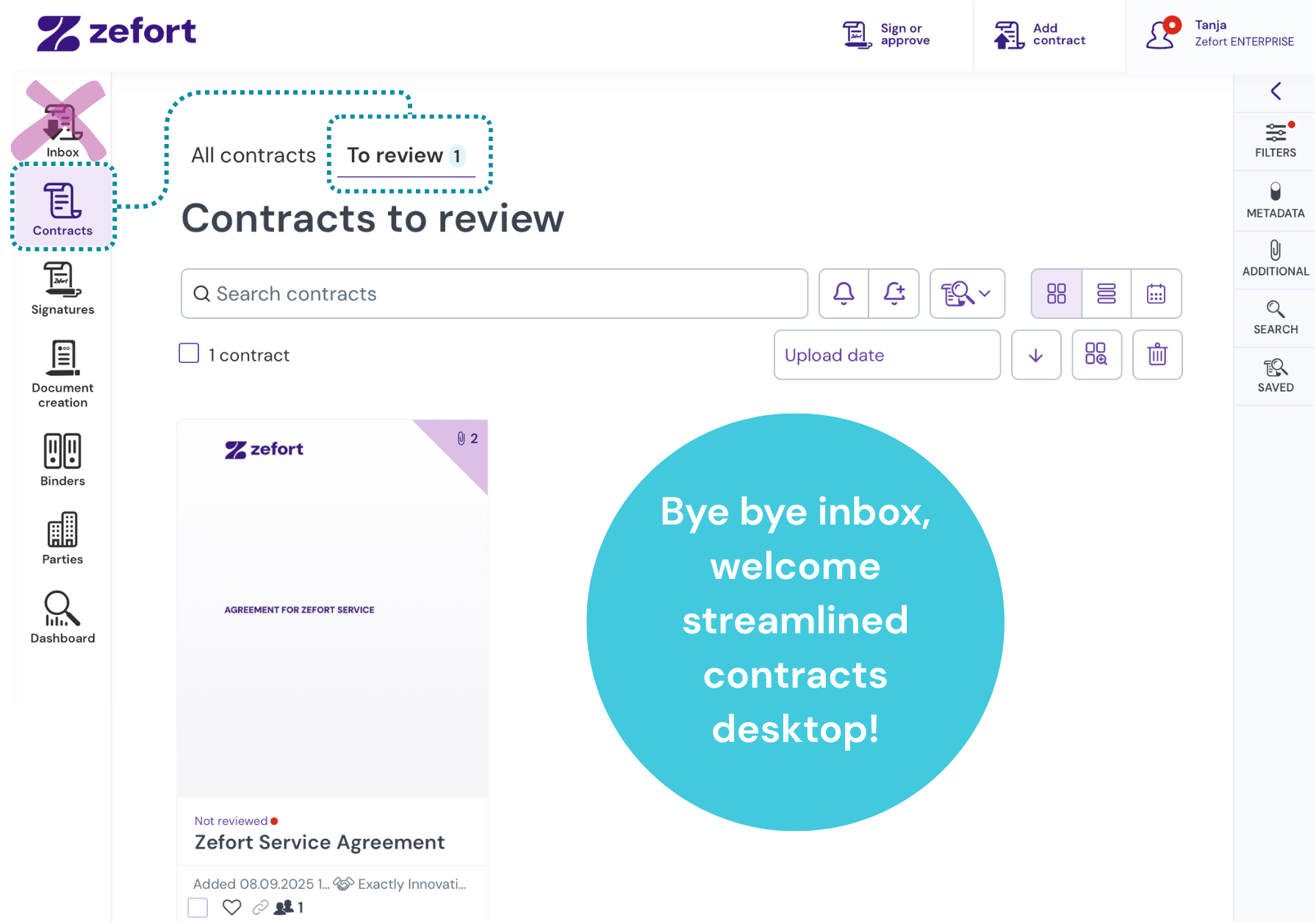
Your contracts page now has two simple tabs to organize your work:
- All contracts: Your complete view of every contract you have permission to see.
- To review: A filtered list of contracts waiting for review.
This change removes an overlapping feature to simplify your view and, more importantly, clears the way for some exciting new tools we’re building. Stay tuned for more updates!
We’re excited to introduce a new setting that gives administrators more control over their contract workflows: mandatory signature target binder.
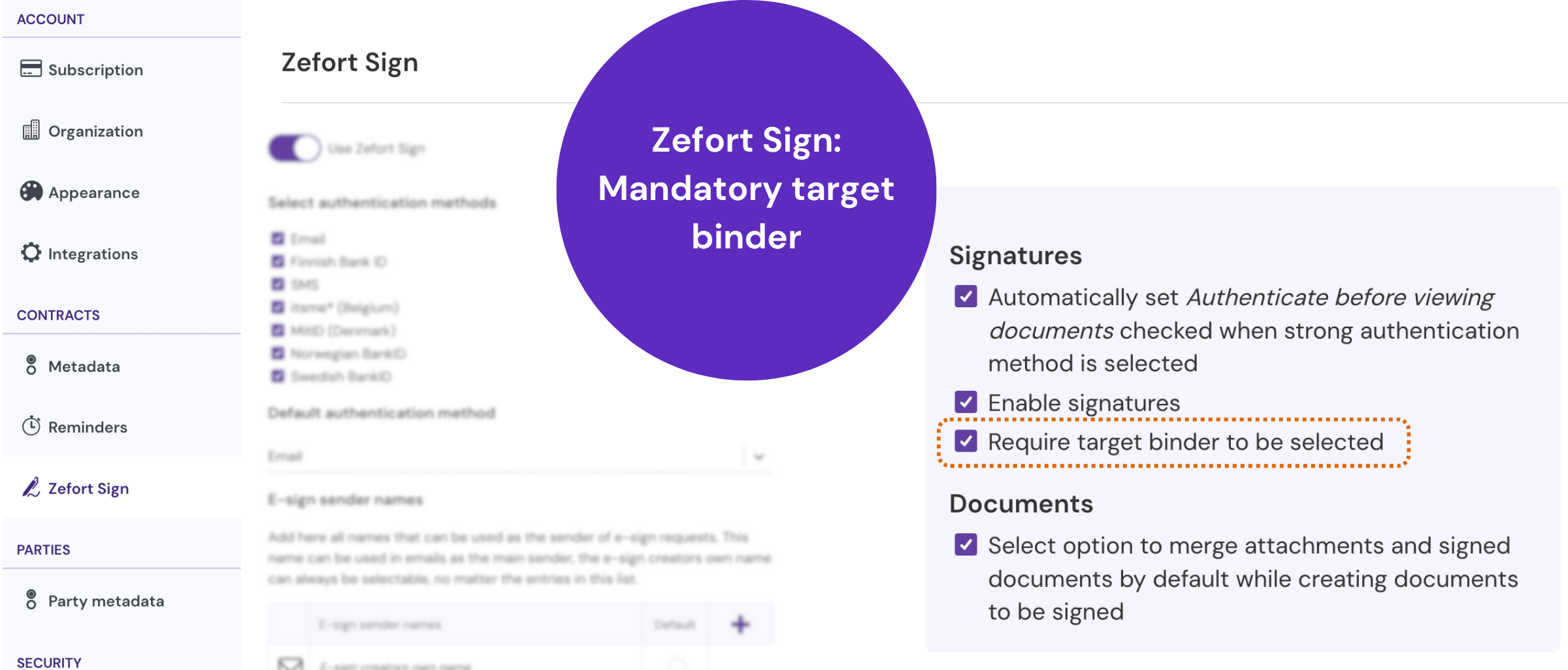
Tired of signed contracts landing in your account without being assigned to a specific binder? With this new feature, you can eliminate that headache for good.
By enabling this setting in your account, users will be required to select a destination binder before sending a document for signature. This guarantees that every completed agreement is automatically organized, saving you time and ensuring nothing gets lost.
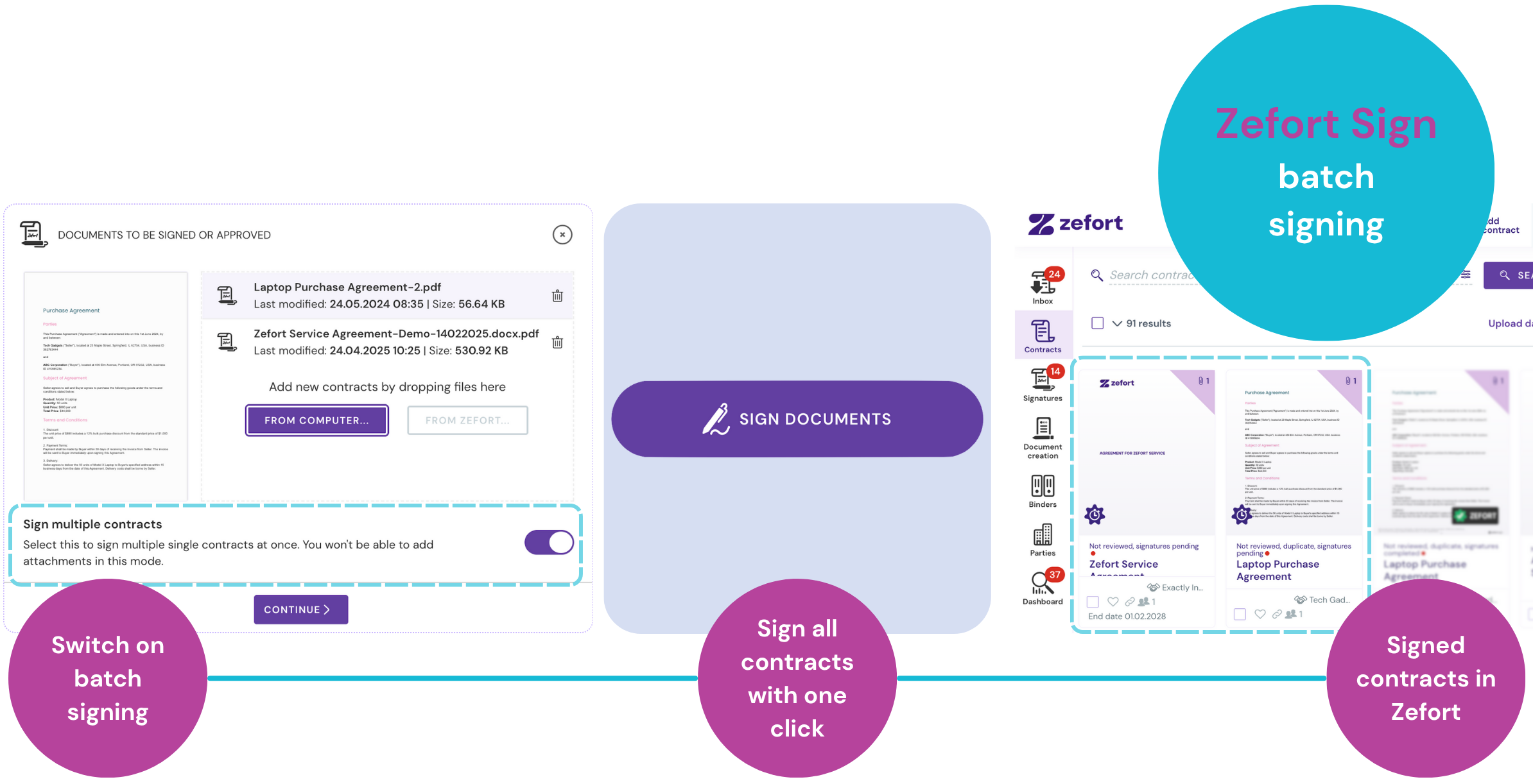
Sign multiple documents simultaneously with Zefort Sign’s new batch feature!
If you often need to send different documents to the same people for signing, we’ve got a handy update for you in Zefort Sign.
We’ve just added a batch signing feature. Now, when setting up the signature process, you can upload all files at once, enable batch signing, and add your signers. They’ll then receive just one link that contains all the documents, making it easier for them to review and sign each one with a single click.
You’ll find each signed contract as a separate document in your Zefort account.
This new feature should make the process smoother. Give batch signing a try next time you have multiple documents for the same signers! See detailed instruction here.
Introducing signature process visibility in Zefort Sign!
We’re excited to announce a feature designed to bring greater transparency to your signature workflows: visibility of the signature process! Now, when configuring a signature request in Zefort Sign, you have more control over what participants can see. With our new visibility settings, you can choose whether or not to show the progress of the signature process to each party involved.
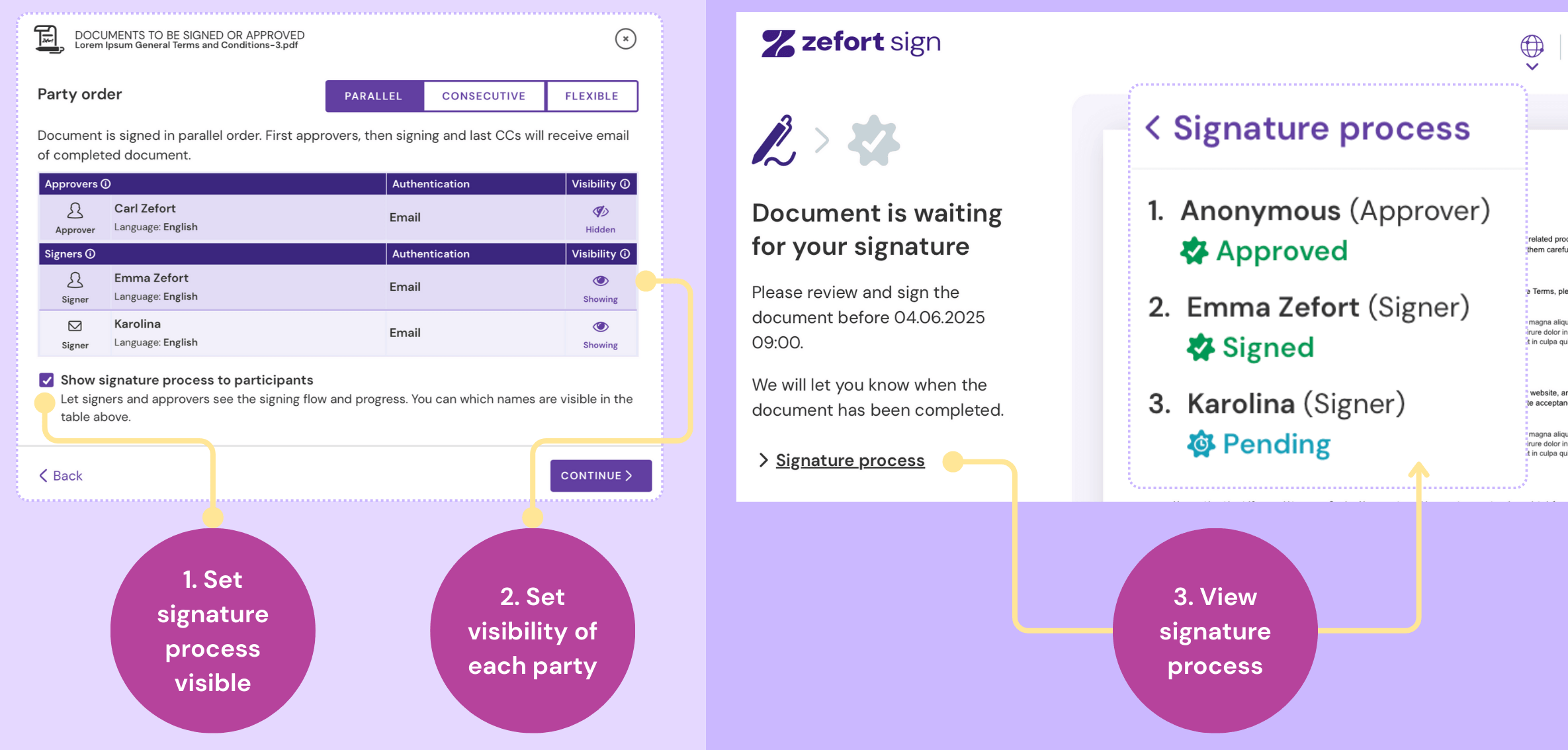
Customize the visibility:
During the signature request setup, you can select the visibility status for each approver and signer. First, make the signature process visible to participants. Next, select which parties are shown and which are hidden.
- Show: Make a participant’s name and status visible to everyone involved in the signature process.
- Hide: Keep participants names hidden from the view (they will be displayed as “Anonymous” in the signature process).
How it works:
When an approver or signer views a document in Zefort Sign, they can now see:
- Who has already approved and signed the document.
- Who is next in the signing queue.
This enhanced view provides clarity and keeps everyone informed about the document’s journey to completion.
Bring more transparency to your workflows with this new feature. Try it out in Zefort Sign today!
Zefort’s AI Chat just got even better!
Good news for Zefort users! The updated AI Chat now lets you include attachments in your enquiry. Just open the AI Chat, choose the documents, and ask your question to get insights for each document – all at once! You can extract the preferred answer as contract’s metadata.
See more detailed instruction here.
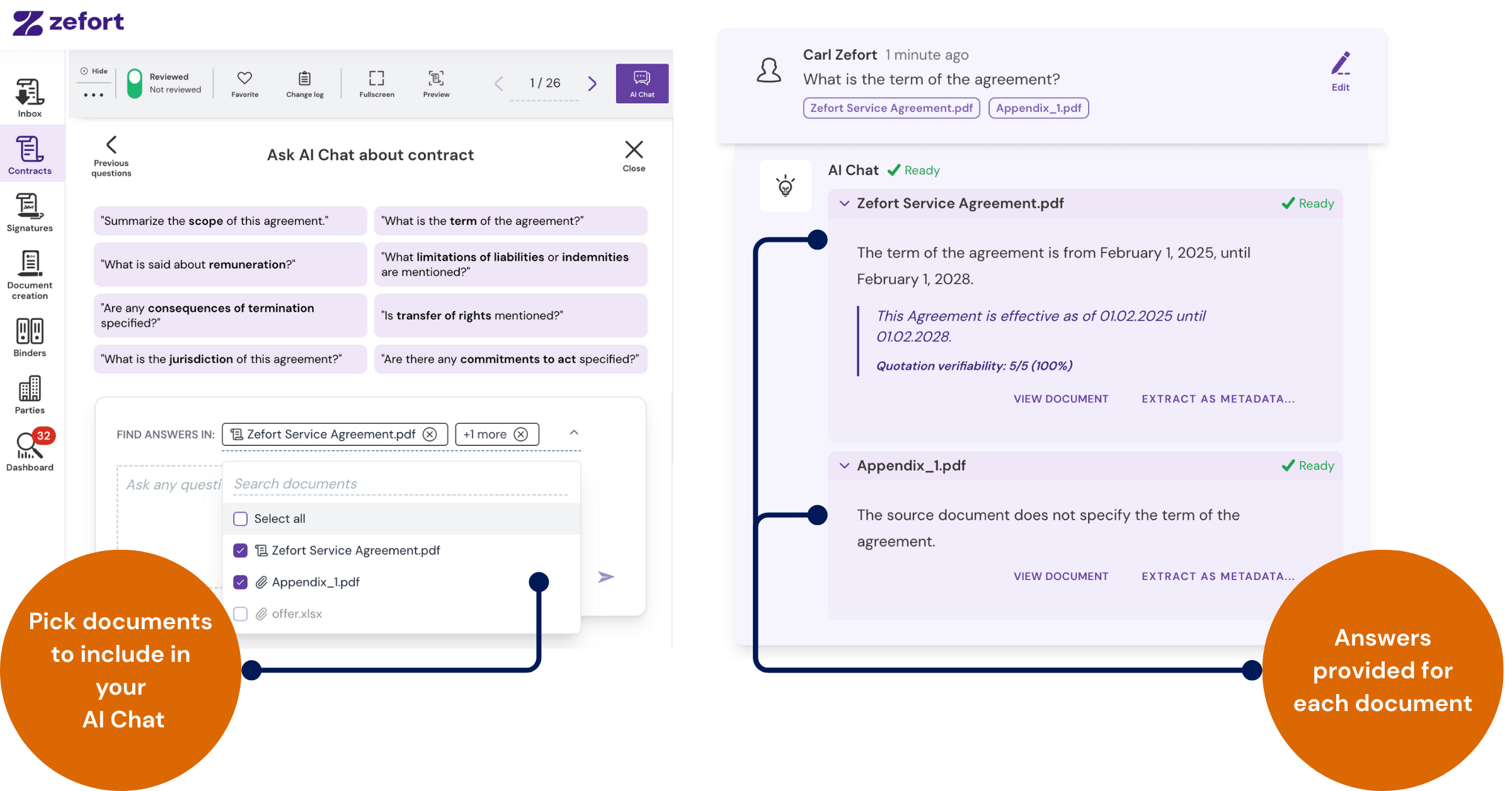
Ready to experience the power of Zefort’s AI Chat? Contact our sales team to learn more!
Heads up – menu changes rolling out!
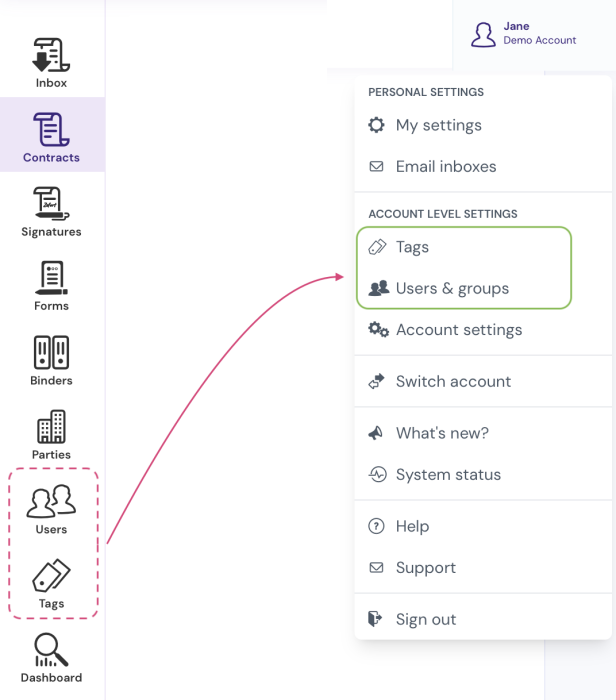
To improve clarity and navigation, we’ve slightly reorganized some menu items. These changes are rolling out starting today:
- “Users” and “Tags” are now located under your user menu in the top right.
- “Forms” has been renamed to “Document creation”, but remains in its original location.
These changes help make the interface more intuitive—and prepare the way for some exciting new features coming soon!