You can find any contract quickly by using a combination of free text search and metadata filters. This guide helps you navigate the search tools to get the exact results you need.
Search for text
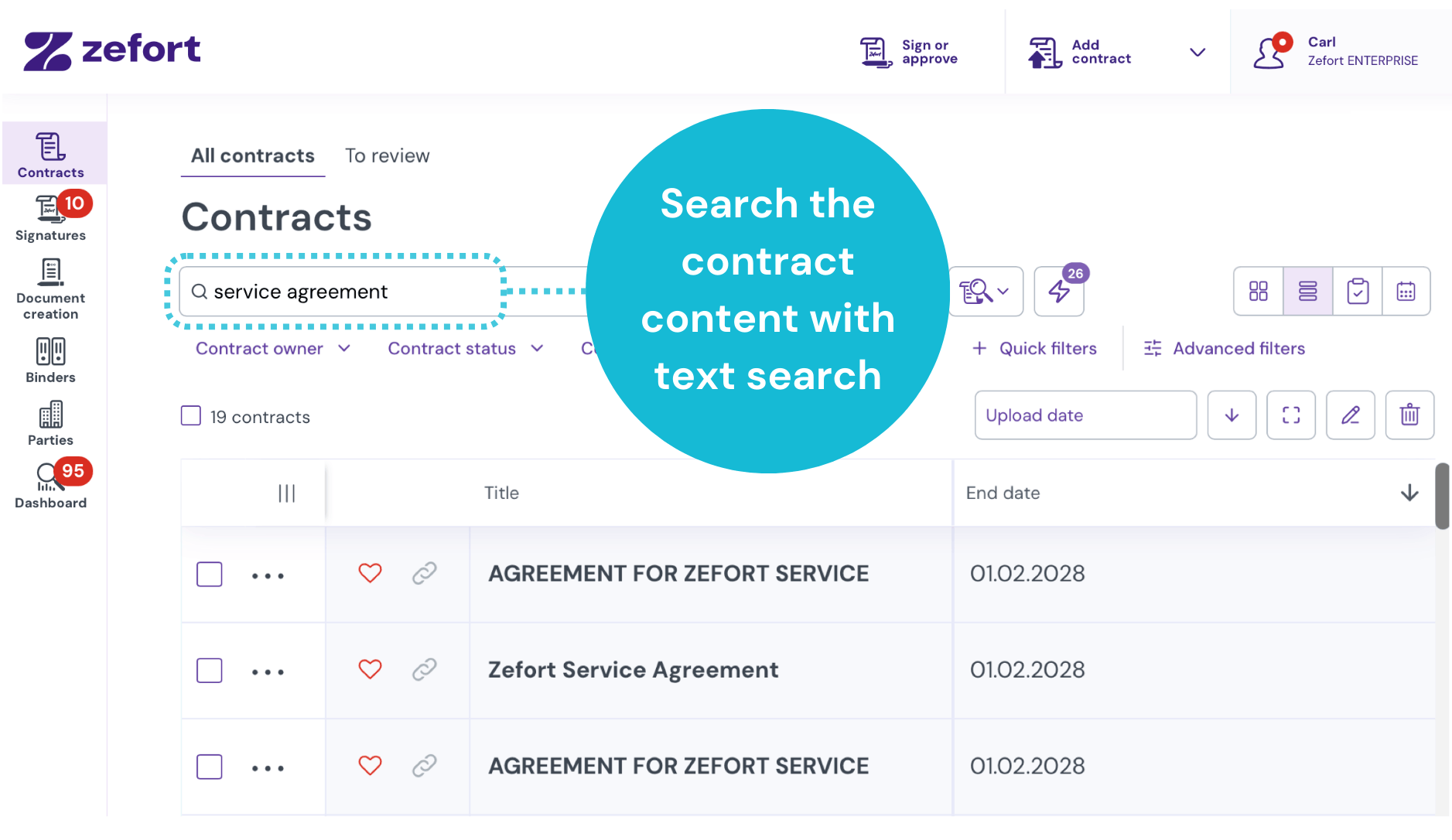
When you upload a document, the system reads every word using optical character recognition (OCR). This means you can search for text within the actual content of your contracts, including scanned PDFs and images.
To start, type your search term into the bar at the top of your document list and press enter.
How text search works
The search tool finds matches for the words you type in the exact order you provide. It also finds different forms of the same word. For example, if you search for “lease,” your results will include “leasing” and “leases.”
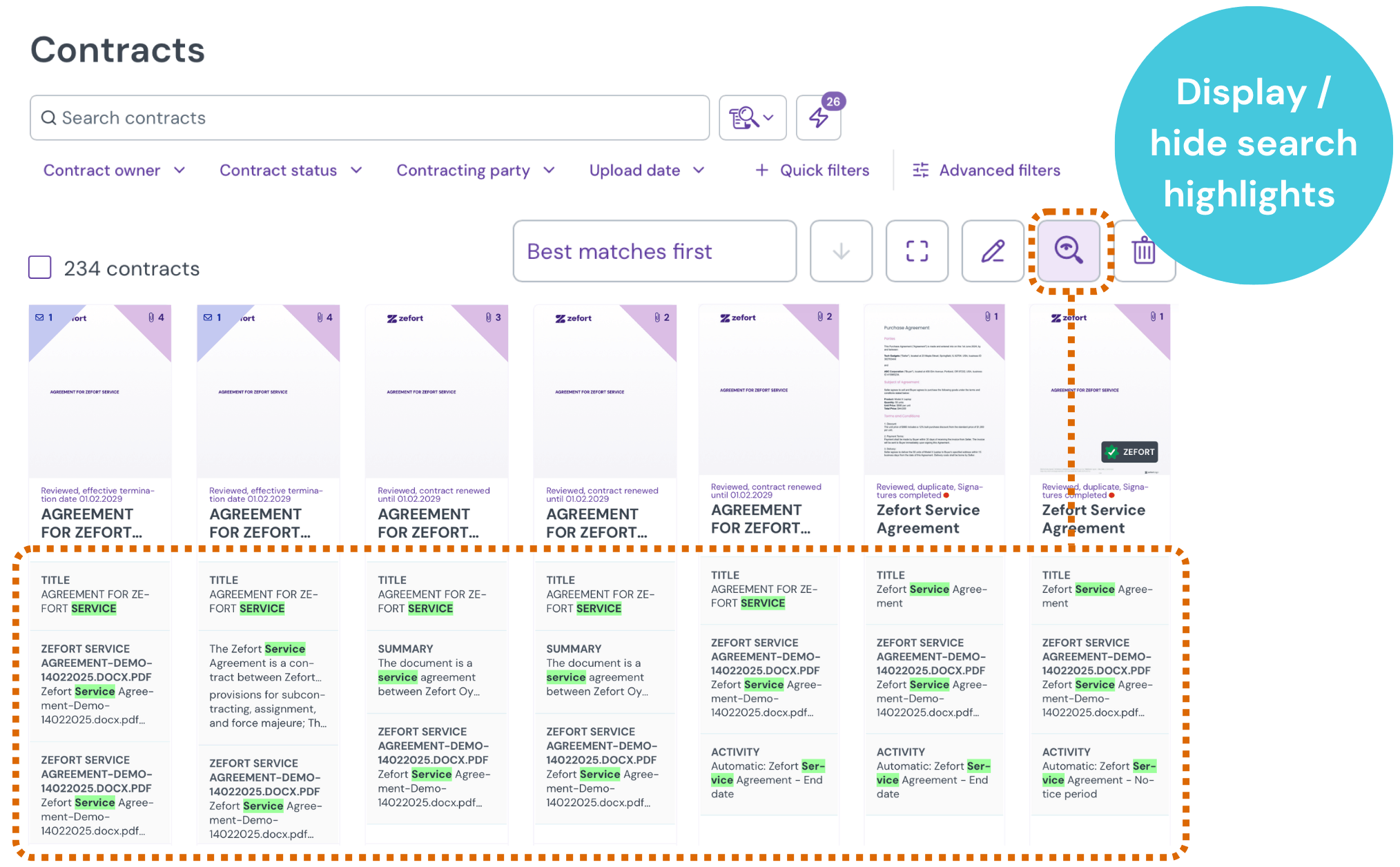
View your search results
Click the magnifier icon to show or hide search highlights. These highlights show you exactly where your search term appears, whether it is in a file, a metadata field, an activity, or a note. Click on a highlight to jump directly to that part of the contract.
Use search operators for precision
By default, the search tool looks for your words as a single text string. If you want to search for words as separate items or you know exactly what you are looking for, use these search operators.
| To do this… | Use this operator | Example |
| Find an exact match | Quotation marks "" |
“non-disclosure agreement” |
| Exclude specific words | Minus sign - |
employment -internship |
| Include any of the words | OR or a comma , |
lease OR rental |
| Include all words | AND |
software AND 2024 |
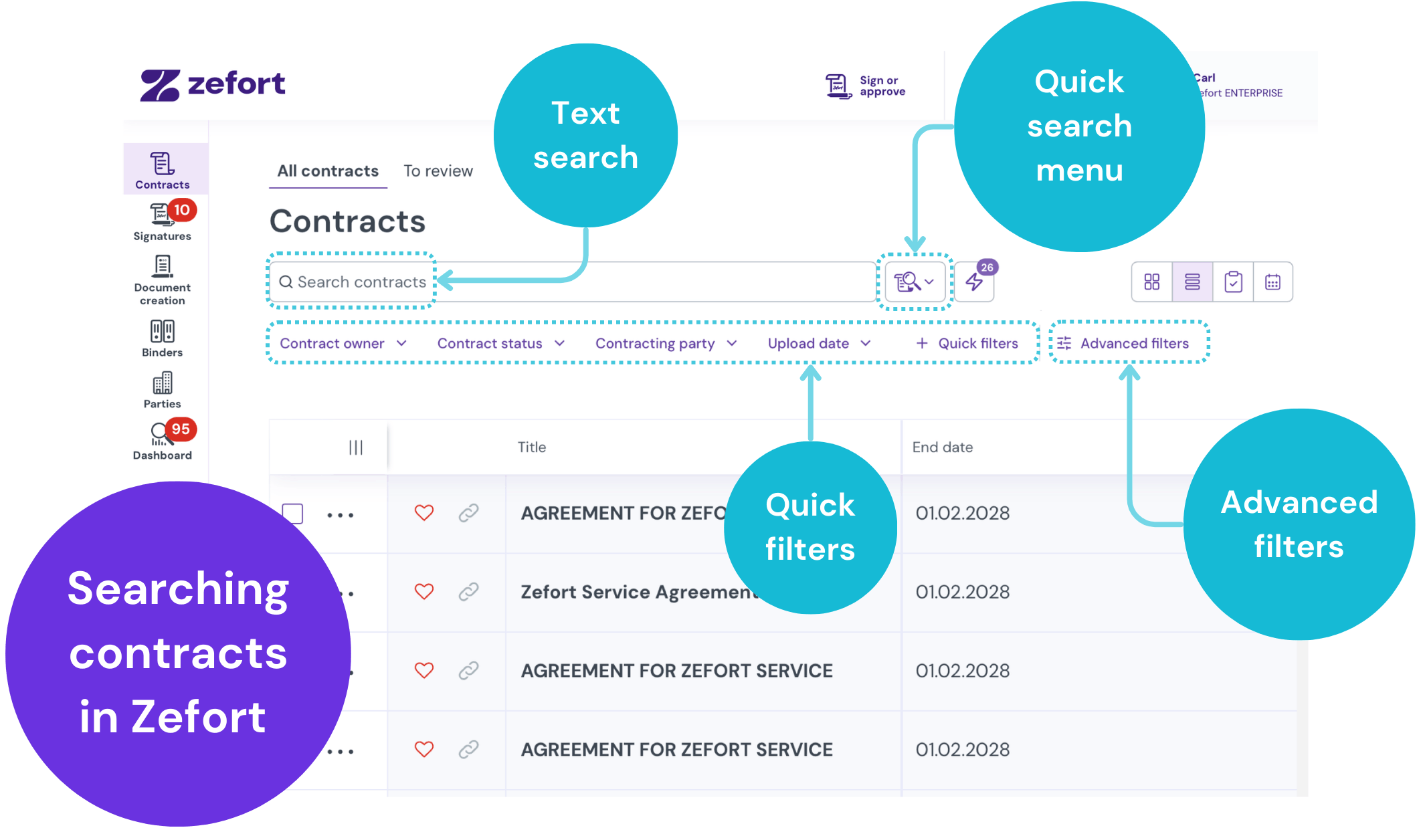
Narrow results with filters
Filters help you drill down into your search results using specific contract details (metadata).
Quick filters
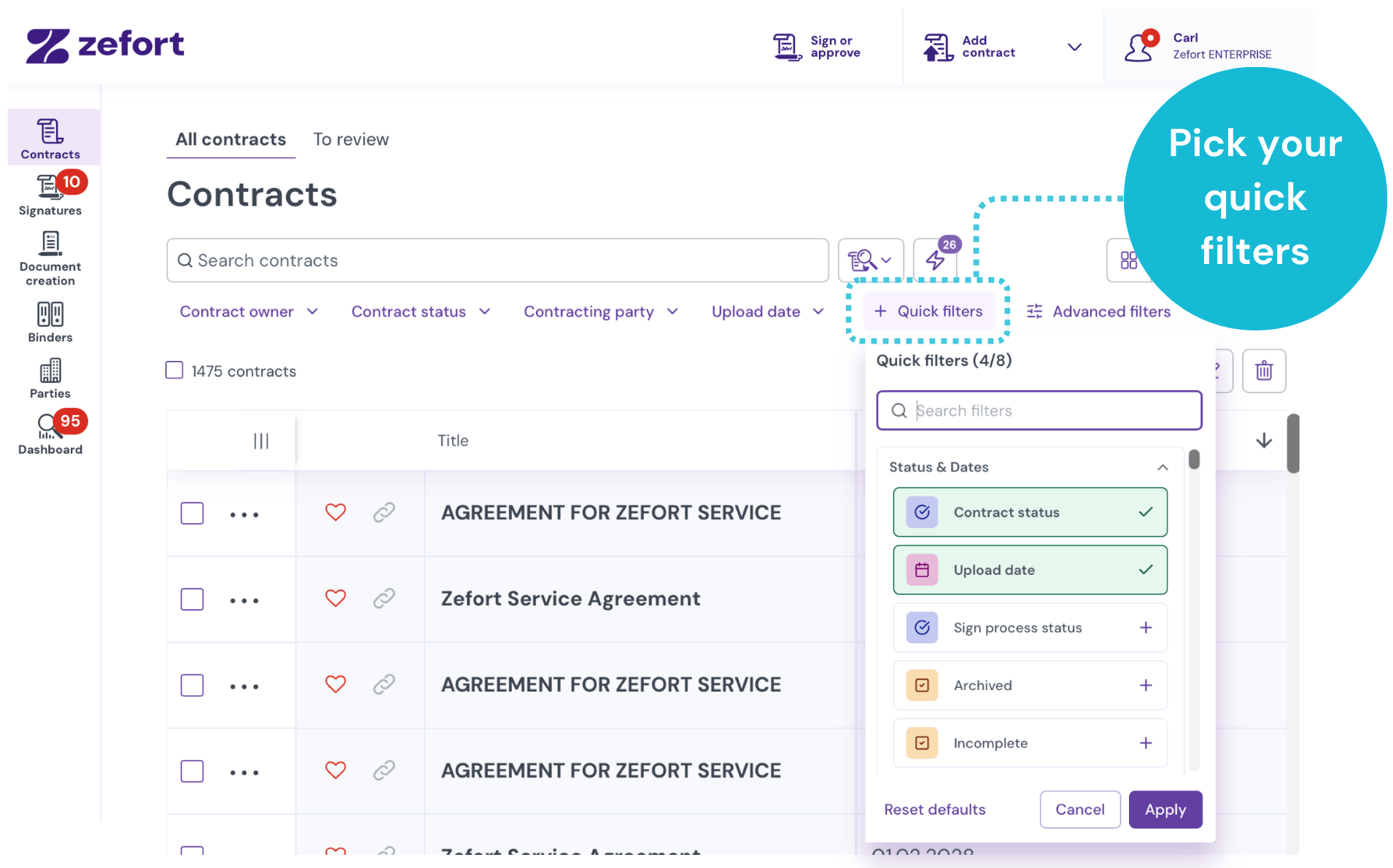
Add quick filters
You can display up to eight frequently used attributes on your contract desktop for fast access.
- Click the “Quick filters” dropdown.
- Select the attributes you want to see.
- Click Apply button
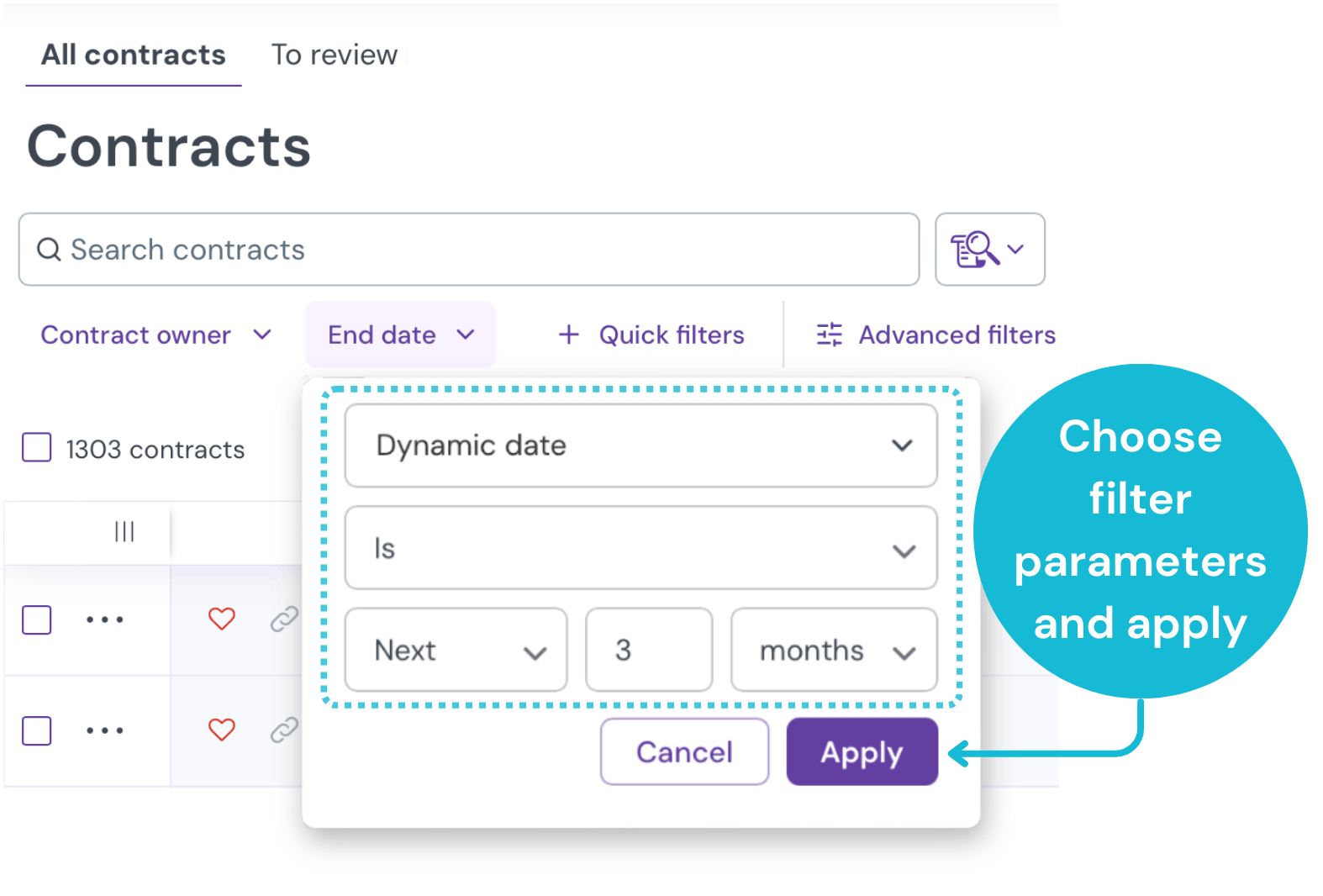
Use quick filters
To use the quick filter, click it, choose your parameters, and click the Apply button.
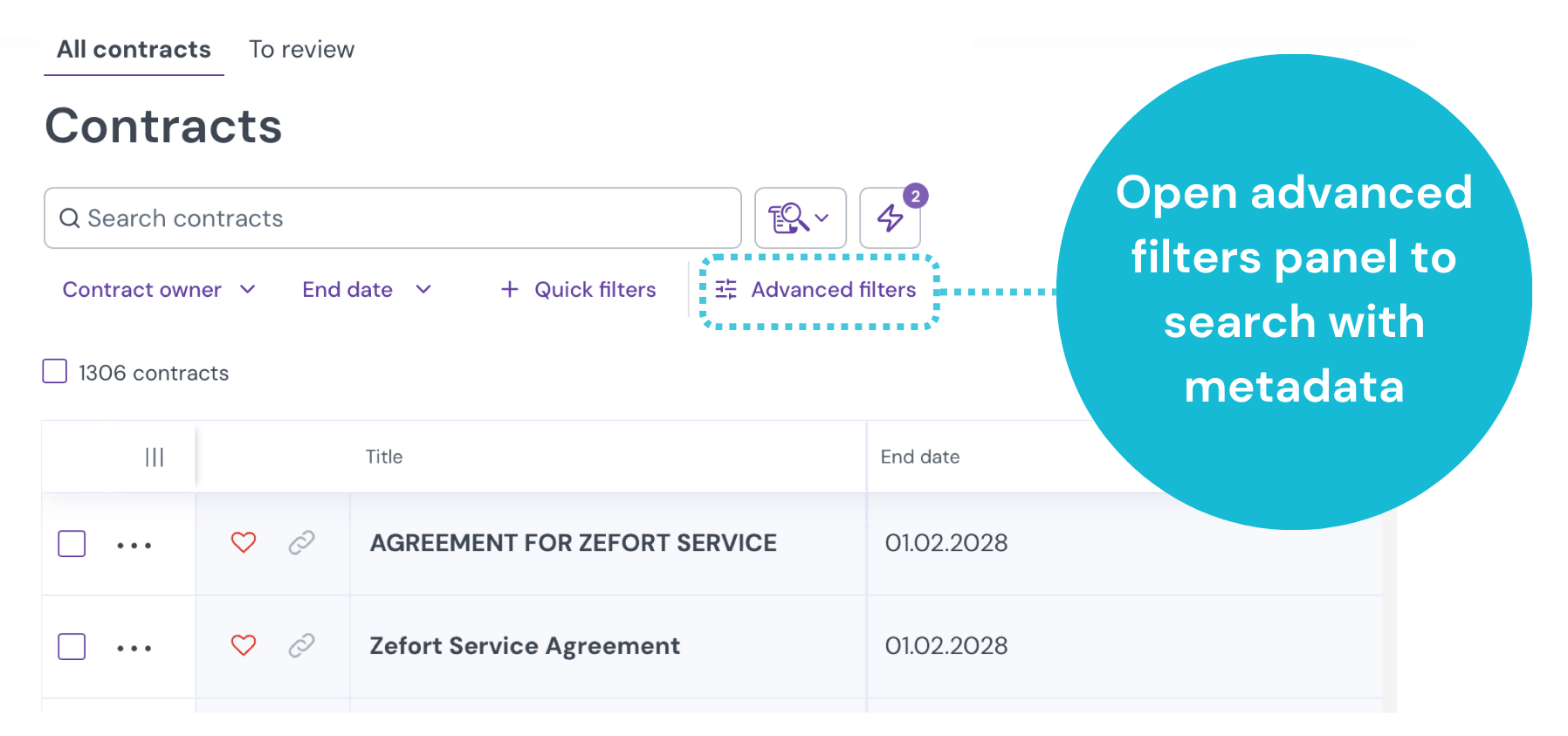
Advanced filters
If you need to combine several specific criteria, use the advanced filters panel.
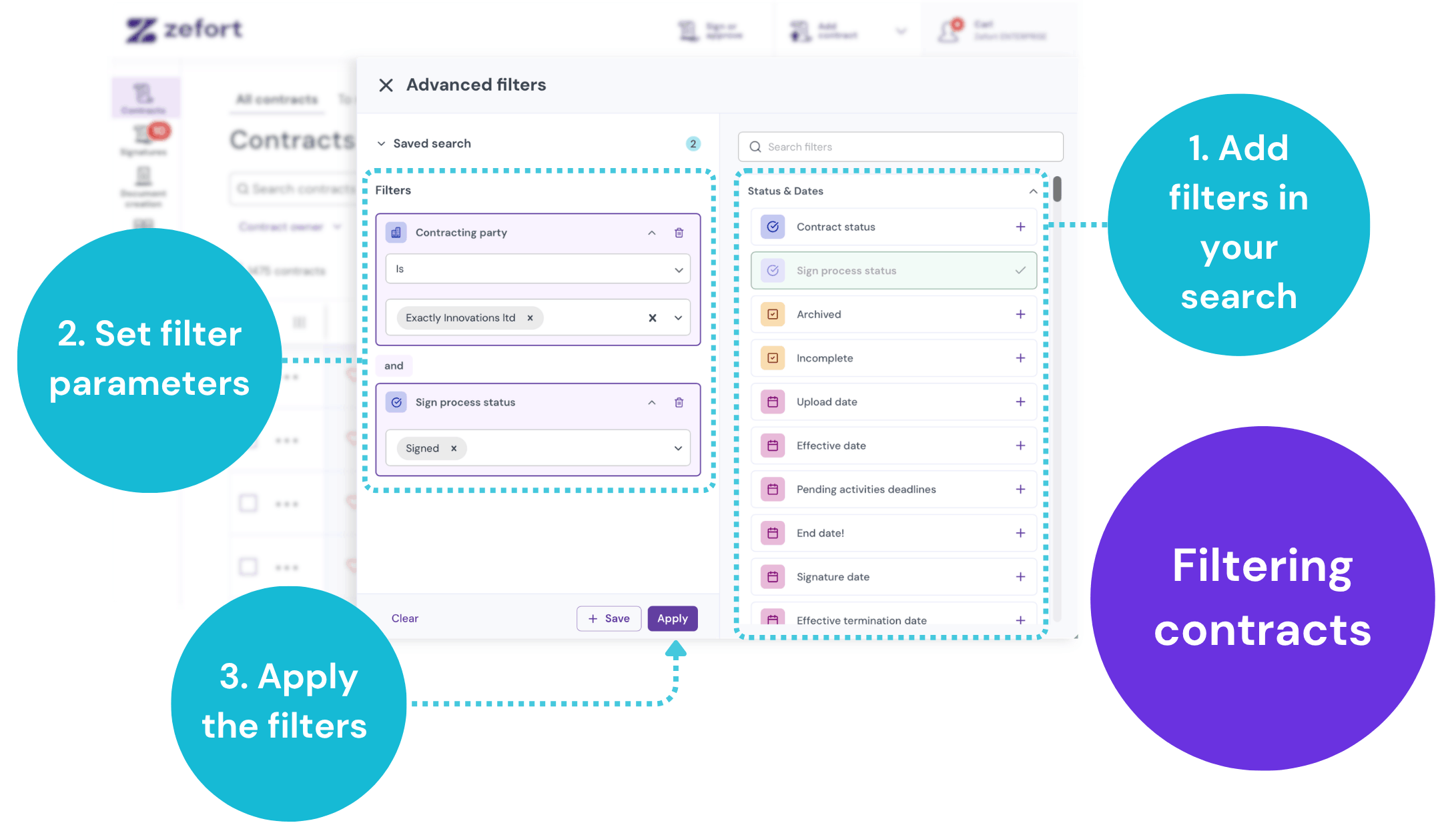
- Open the Advanced filters panel.
- Find the filter you need on the right-hand side and click it. It will move to the left side of the panel.
- Enter your search parameters.
- Click the Apply button in the top right corner.
To reset the search, click Clear and then Apply on the filter panel.
Save your frequent searches
If you perform the same search regularly, save it for future use.
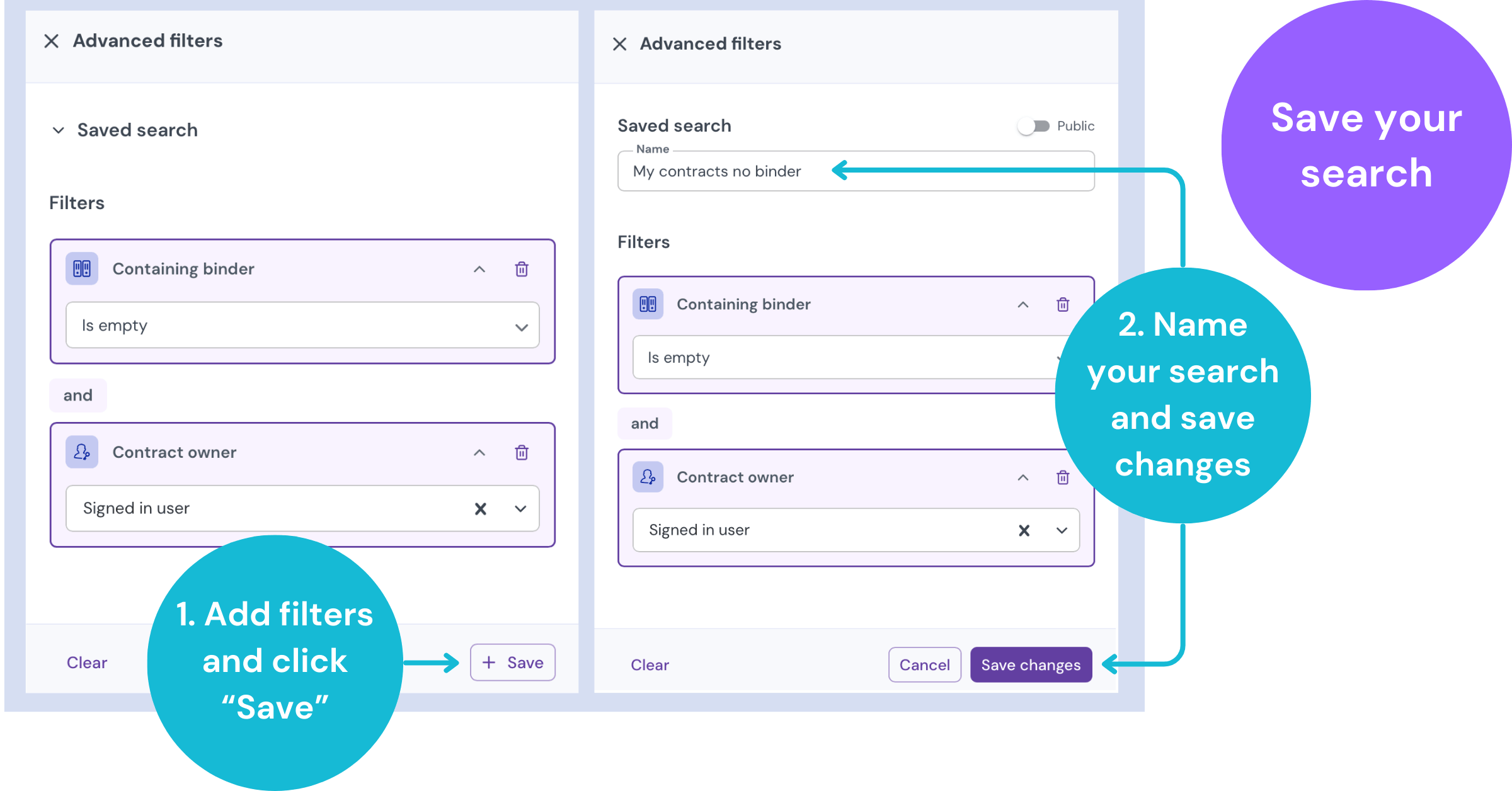
- Build your search using text or filters.
- Click the Save button.
- Enter a name for the search.
- Toggle the Public switch if you want to share the search with your team.
(User permission “can manage account settings” required.)
- Click Save changes
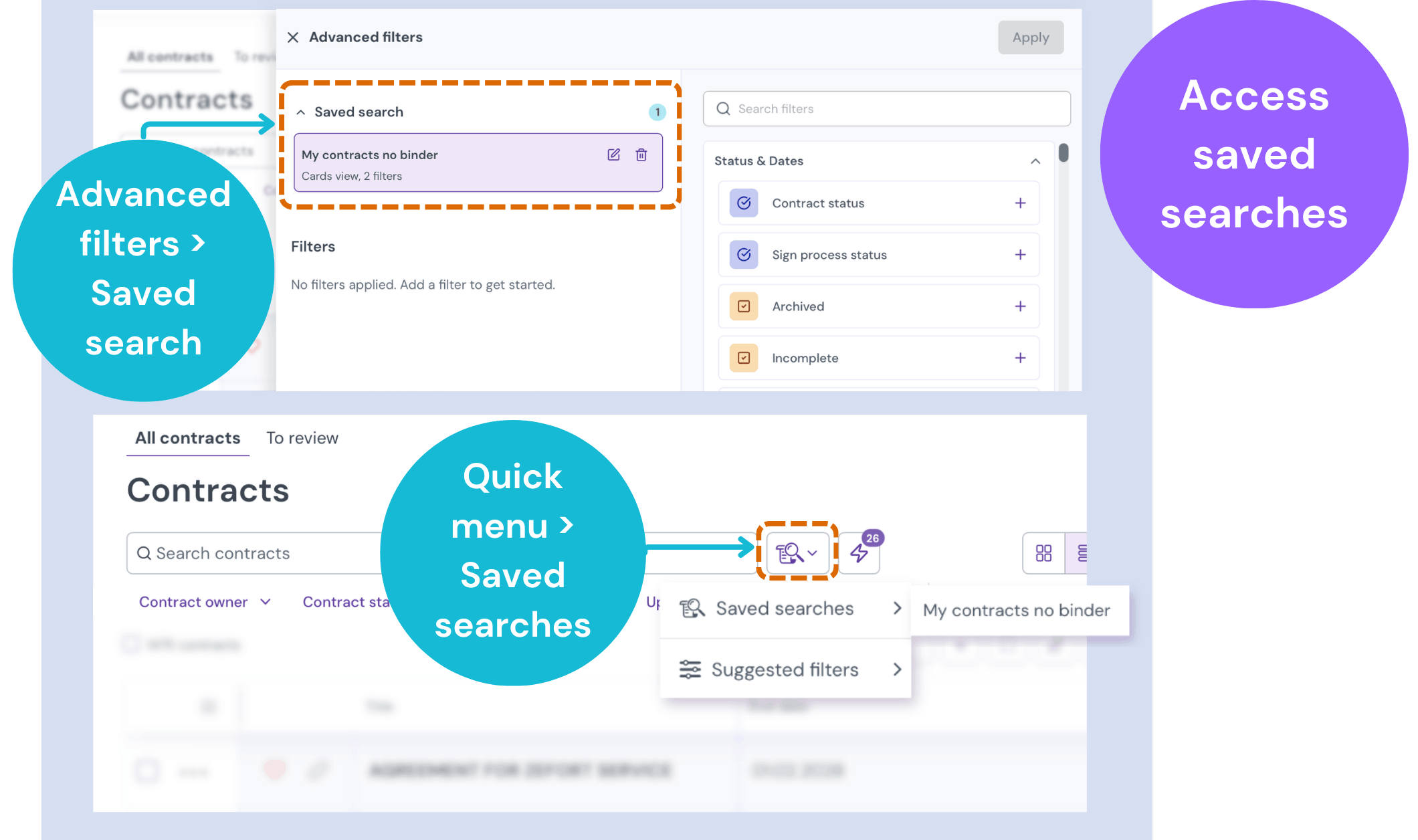
You can find and manage these under Saved search in the advanced filters panel.
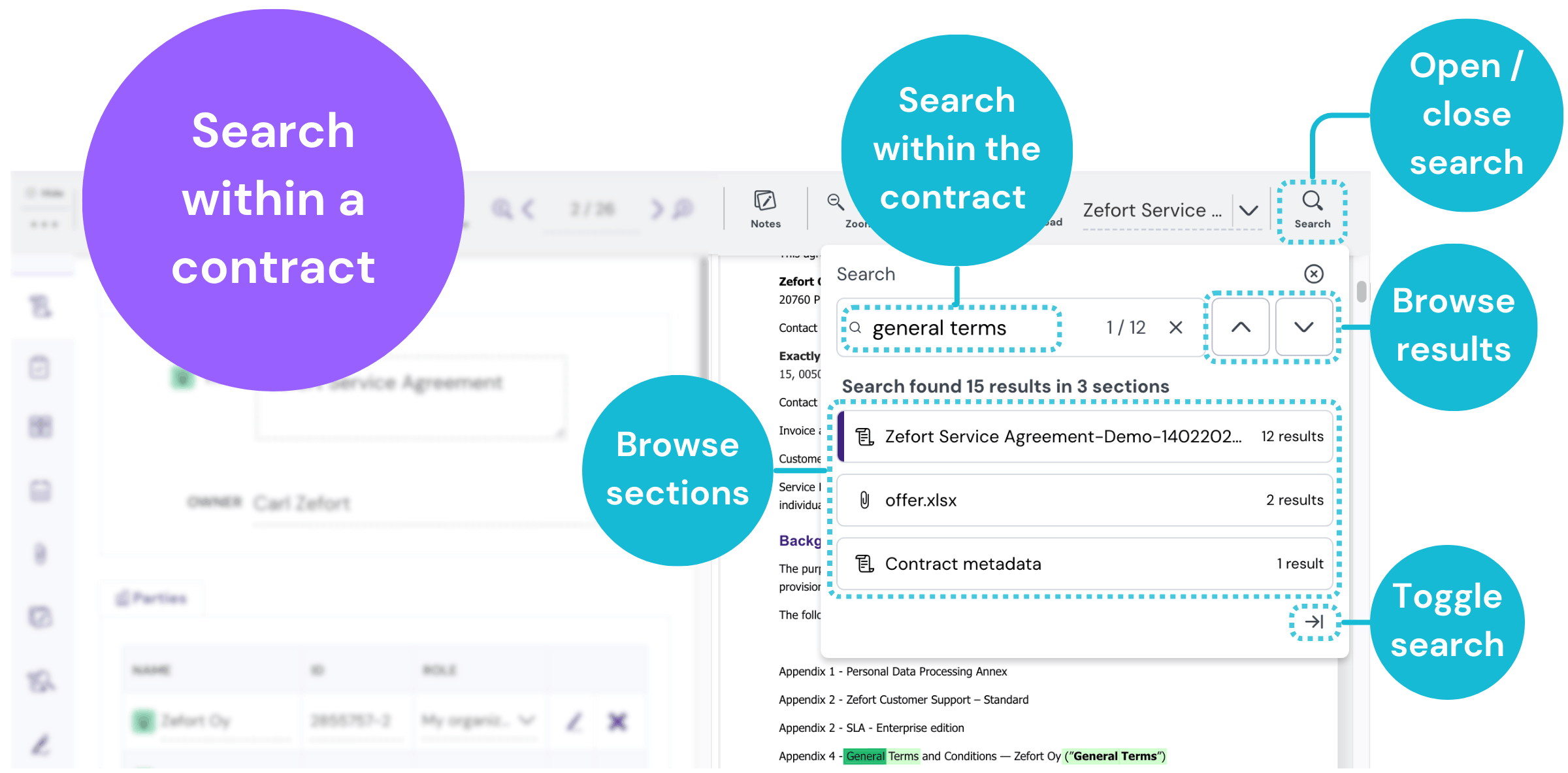
Search within a single document
To find a specific term or clause inside one contract, use the internal search tool.
- Open the contract.
- Click the Search button in the top right corner.
- Type your term and press enter.
- You will see a list of sections containing hits. Use the up and down arrows to browse the results, which appear highlighted in green.
Pro tip: Click the toggle button to minimize the search window. This gives you more room to read while keeping the browse and section buttons available.