An API-only user is a headless service account designed strictly for automated integrations (like an ERP, CRM, or contract intake script). Creating an API-only user instead of linking an integration to a personal account provides security isolation, ensures your integration retains the principle of least privilege, and prevents disruptions if an employee leaves the company.
Setting up an API connection requires two distinct steps: creating the API-only user identity, and then generating an API key for that user to authenticate requests.
Note: API keys can be linked to either API-only users or regular human users. However, using a dedicated API-only user is the recommended best practice. An API-only user consumes one regular user license.
Prerequisites
Before you begin, ensure you have the following:
- Your account must have API access enabled.
- You must have an available, unused user license to assign.
- You must have admin license with user permissions Can manage users & groups and Can manage account settings
Step 1: create the API-only user
First, create the identity and define its permissions.
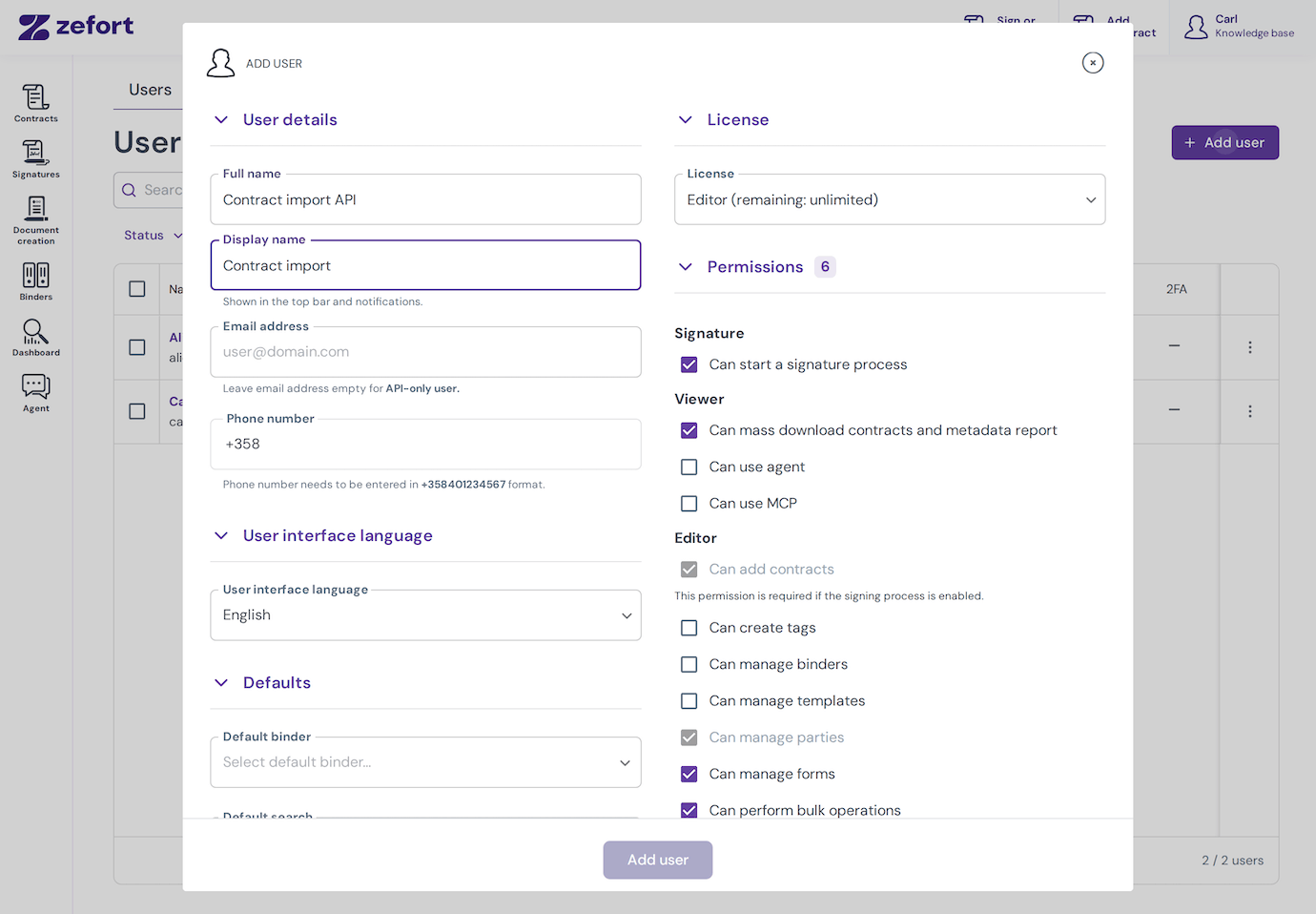
- In Users, click Add user.
- Enter a descriptive Full name, such as Contract import API.
- Leave Email address empty.
- Choose a license and check only the minimal permissions the integration needs. For example, contract imports need Can add contracts.
- Click Add user to save.
The user is created as active immediately, and Zefort does not send an activation email. This user does not have an email and password login for the browser interface.
Step 2: Create and configure API key for the user
Next, generate the authentication token the integration will use.
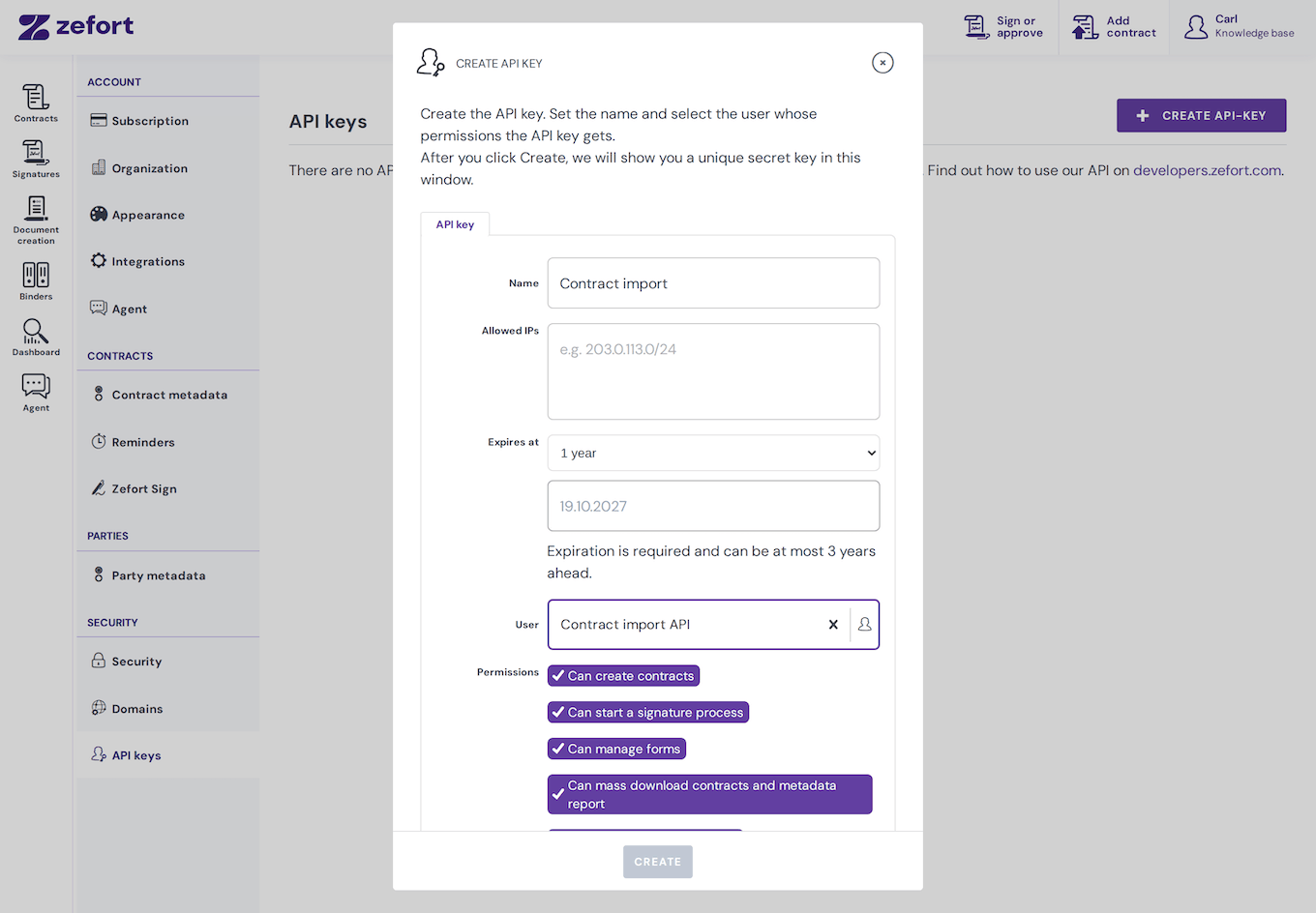
- On the API keys page, click Create API-key.
- Enter a name for the key to identify its purpose, such as Contract import.
- Under Allowed IPs, you can optionally restrict usage to specific IP addresses or CIDR network ranges, separated by commas or newlines. If left blank, the key can be used from any IP.
- Set the Expires at date. You can use the quick-select presets (such as 1 year or 6 months) or choose a custom date up to a maximum of 3 years.
- Under User, select the API-only user you created in Step 1. The key will inherit this user’s permissions.
- Click Create. Copy the secret key and store it securely before closing the dialog.
Warning: The generated secret key is displayed only once. Copy it immediately and store it in a secure password manager or vault. Once you close the dialog, the secret cannot be retrieved.
Managing the API key lifecycle
Your active, expired, and revoked API keys are listed on the API keys overview page.
[pic The API keys overview table showing existing keys along with their Active, Expired, or Revoked statuses.]
You can manage existing keys by clicking the dropdown action menu (three dots) next to a key:
[pic The API key action menu showing Edit, Rotate, and Revoke options for an active key.]
- Edit: You can update the Allowed IPs list on an existing active key without invalidating the secret. This is useful for avoiding integration downtime if your server IP changes.
- Rotate: Generates a brand new secret key while preserving the original name, user, and IP restrictions. Rotating is an atomic action that instantly revokes the old key.
- Revoke: Instantly disables the key. Keys cannot be deleted entirely; they are retained with a “Revoked” status for security auditability.
Technical Usage
When authenticating API requests, the secret key must be passed in the HTTP headers of your request like so:
Authorization: Token <your_secret_key>
For complete endpoint references and technical details, please refer to the Zefort Developer Documentation.