Zefort Sign
Need some help with signing documents?
Browse the frequently asked questions below or contact us using the support form.
Frequently asked questions
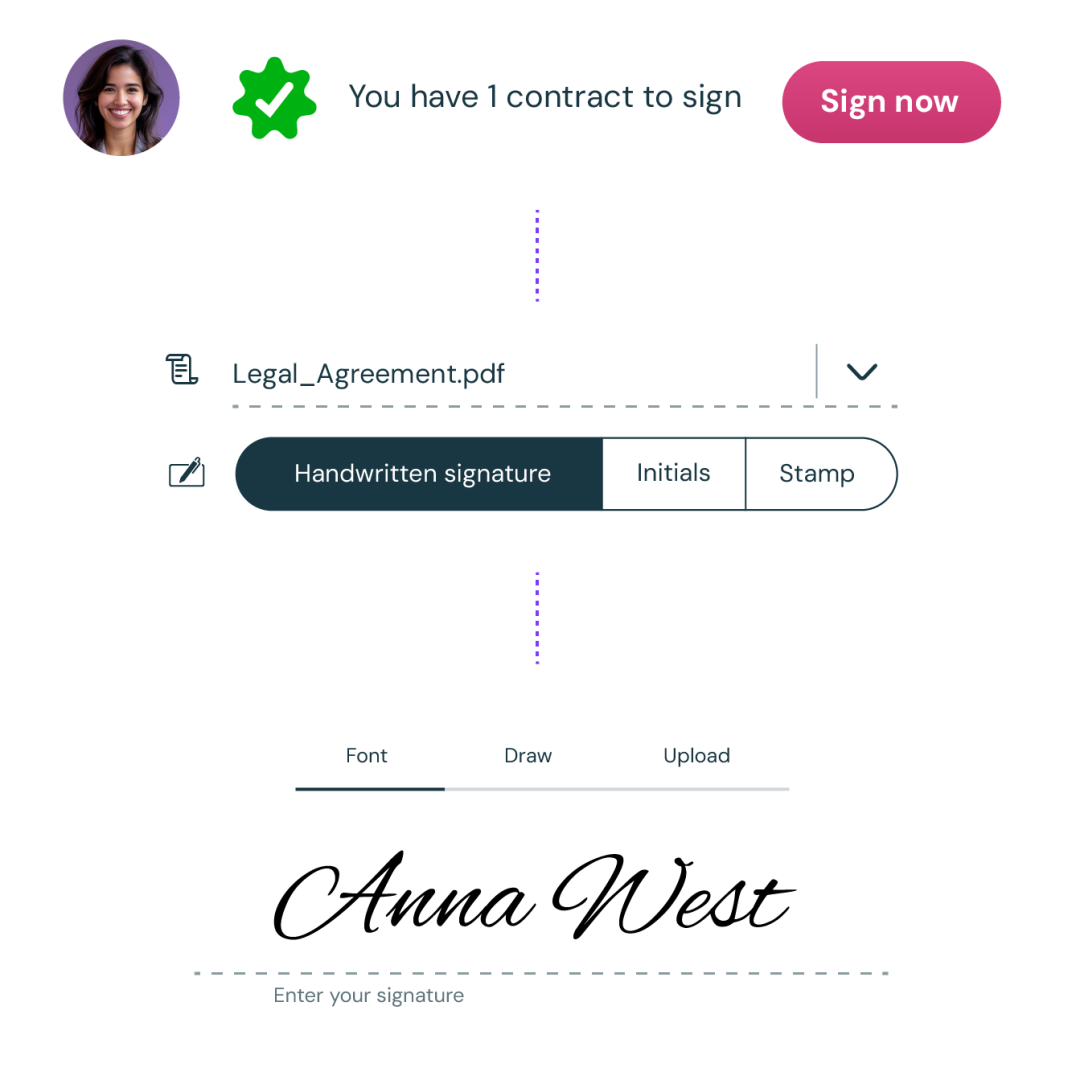
- You will receive an email from Zefort with a link to sign
- Open the link
- If Zefort user has required SMS or strong authentication with bank ID, follow the given instructions
- Review the contract (and possible attachments), scroll down and click “Sign document”
After all parties have signed the document, you will receive an email with a link to it. Please note that the link is valid for 2 weeks, in which time you need to download the document.
- Check if the email is in your spam folder
- The email might have been blocked by e.g. email server or firewall.
- Add Zefort email address on the whitelist of your email box
- Ask your organization’s IT department to add Zefort in the whitelist
- If you have received multiple sign requests in a short period of time and your email is chaining emails, it is possible that the request was missed by mistake.
Make sure that you have up to date device and browser.
You can try another browser (see supported browsers: https://zefort.com/support/supported-browsers/)
Please read following article https://zefort.com/support/zefort-sign-technical-information/