Think of a Playbook as your digital compliance assistant. Reading through long contracts to check for specific clauses or requirements takes time and focus. Playbooks scan your contracts to check if they follow your internal policies, legal requirements, and specific guidelines.
Prerequisites
You need these settings and permissions before you can run a playbook.
- Your account must have Playbooks enabled and account administrator must create the playbook rules.
- Your user must have an Administrator or Editor license.
- For bulk actions, your user must also have the Can perform bulk operations permission.
Note: The contract must have processed documents before automatic analysis can run. If the Analyze button is disabled, check that the contract has processed documents and that no playbook analysis is already in progress.
Run a playbook for one contract
- Open Contracts or Binders
- Open the contract you want to review.
- Select Playbooks in the contract sidebar.
- Select the playbook you want to use if more than one playbook is available. You can use dropdown or the the arrows next to the playbook name to move between playbooks
- Select Analyze and wait for the analysis to finish. The processing shows states:
- Queued means the rule is waiting for analysis.
- Processing means the system is analyzing the rule.
- Error means the rule could not be analyzed.
no
- Review each rule result.
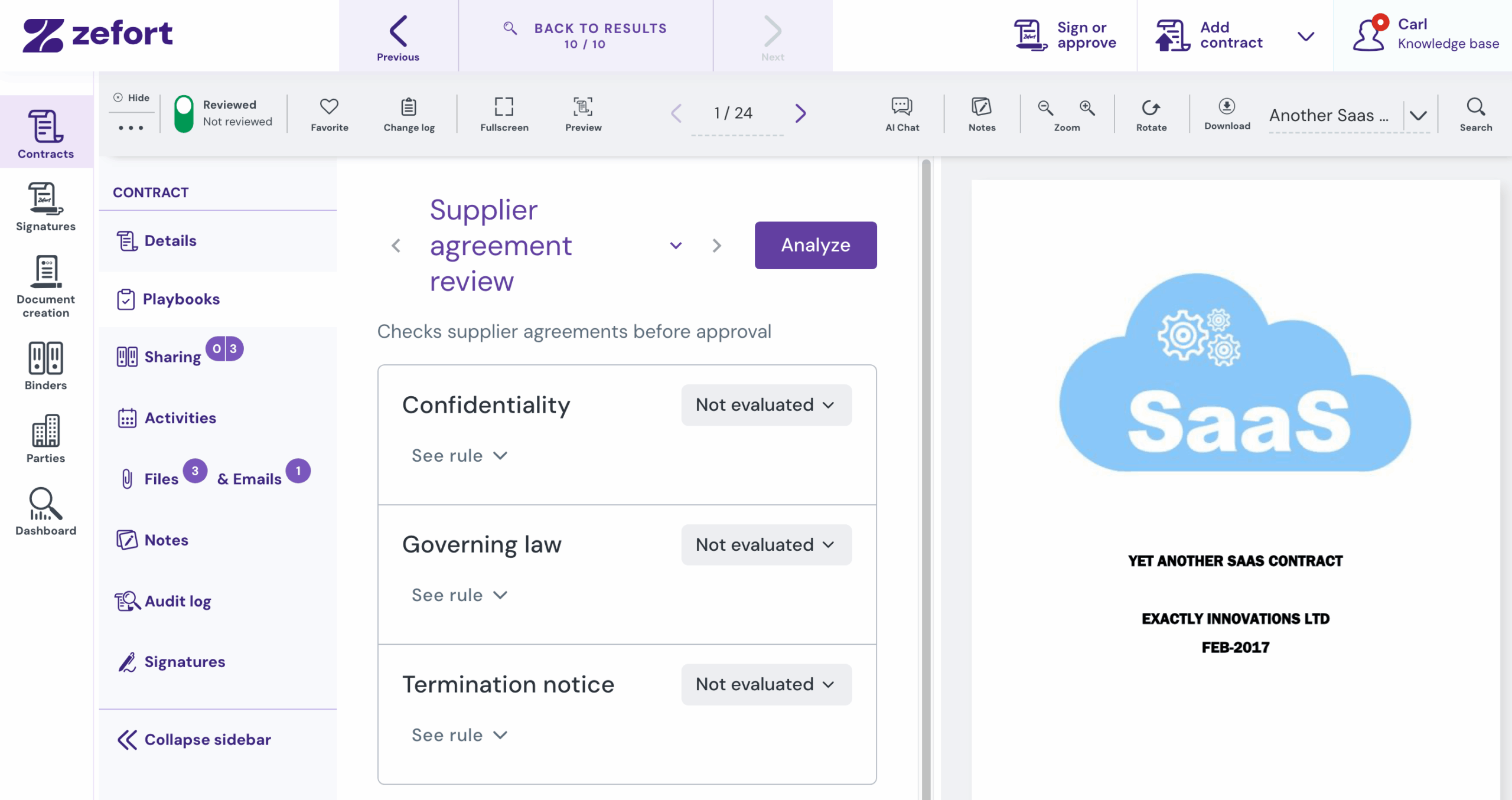
Review results
Each rule has its own result. Select See rule, Score, or Evidence to inspect more detail when those options are available.
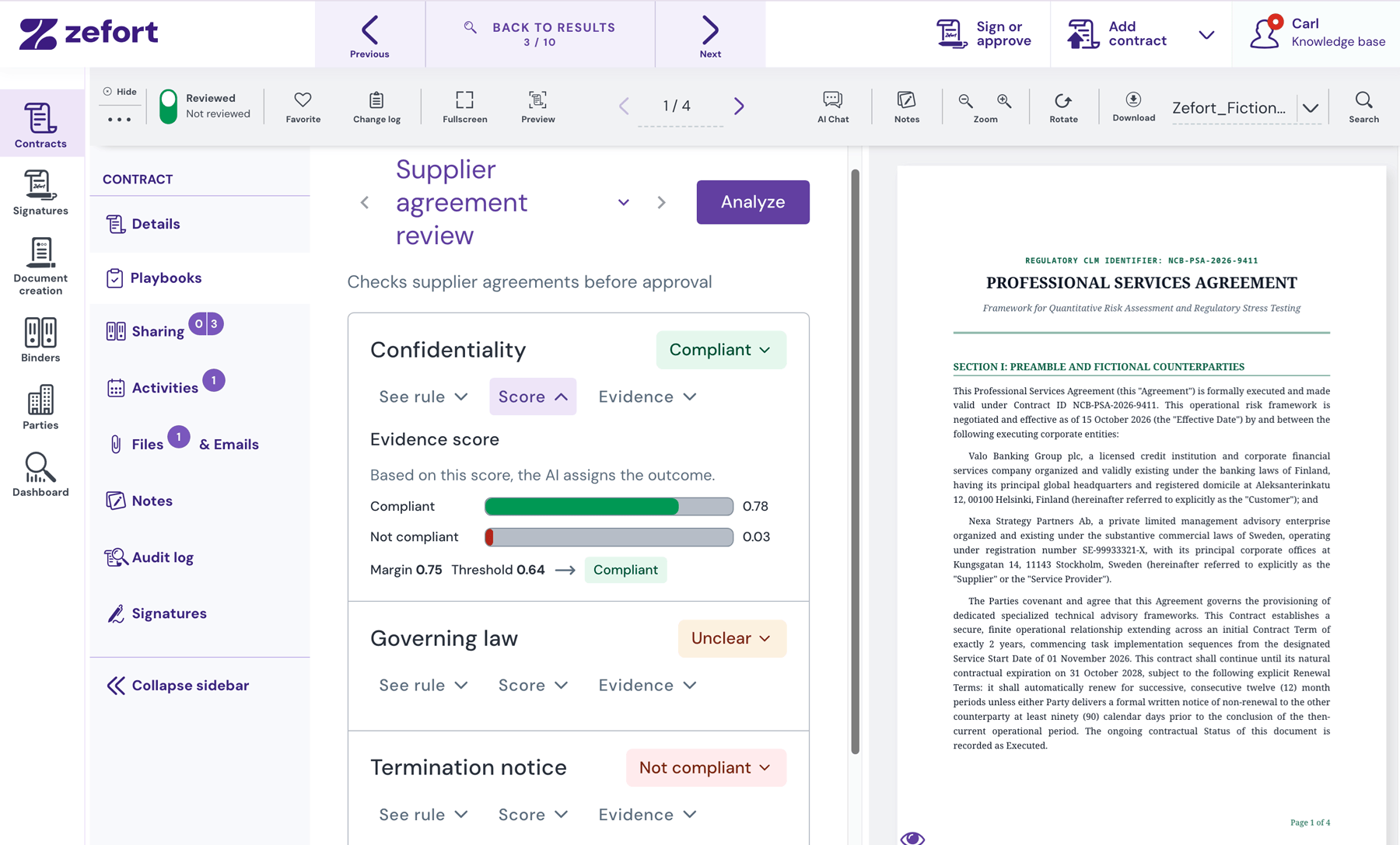
- Compliant means the contract appears to meet the rule.
- Not compliant means the contract appears not to meet the rule.
- Unclear means the system could not make a confident decision.
- No information is a manual-only option. Select this label when a contract lacks the details needed to mark it as Compliant or Not compliant (for example, if a required clause is missing entirely).
Manual inspection of AI results
Treat Playbook results as a helpful guide rather than a final legal determination: the AI assists your professional review instead of replacing it. Manual inspection is specially important when Margin (the difference between Compliant and Not Compliant scores) is not substantially big. This happens for all Unclear labels, but we recommend you to review all AI labels, since any AI can make mistakes.
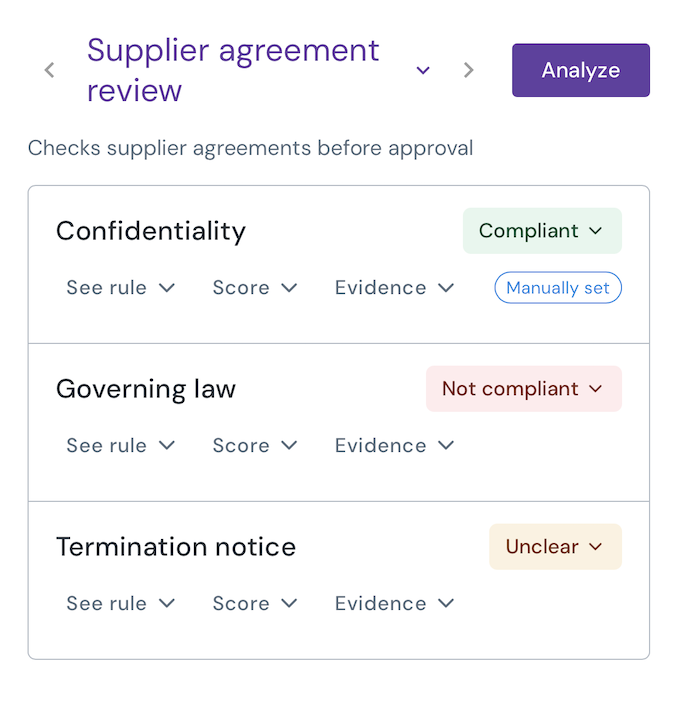
If you disagree with the AI result for a contract-rule, you can always change and set the label manually (for example changing a Compliant to Not compliant label, or changing an Unclear to Compliant). When you update a status, the system adds a Manually set tag to the result. This helps you easily track which items you reviewed and changed. If you rerun the playbook analysis later, the system preserves your choices and will not overwrite the manual input.
View and export playbook data
You can customize your contract table to review playbook results alongside your standard contract details, then export that data whenever you need it.
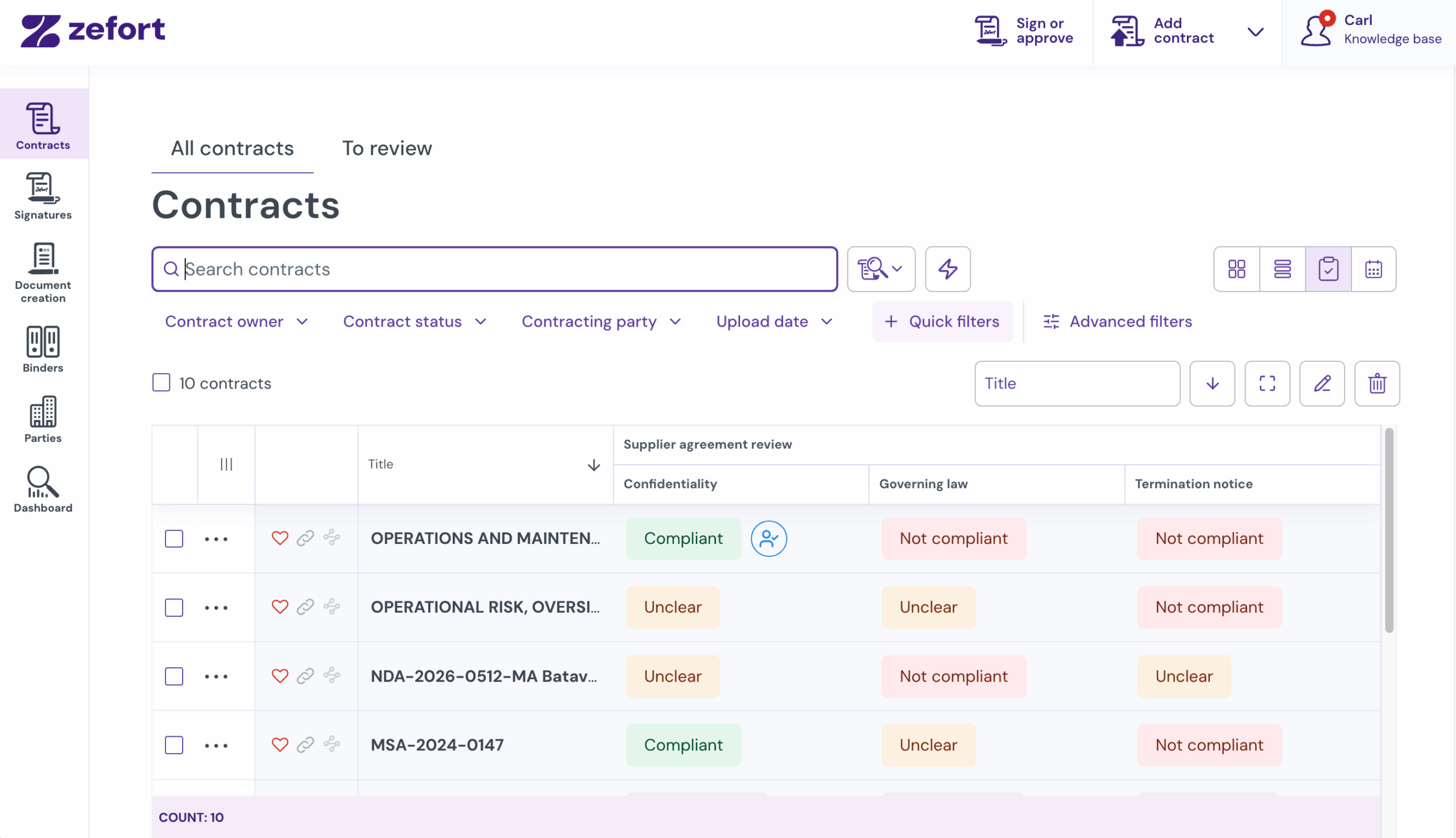
- Go to Contracts and select the Playbooks view button.
- Click column settings to choose which playbook details you want to display. You can also add any contract metadata attribute to your table alongside your playbook data.
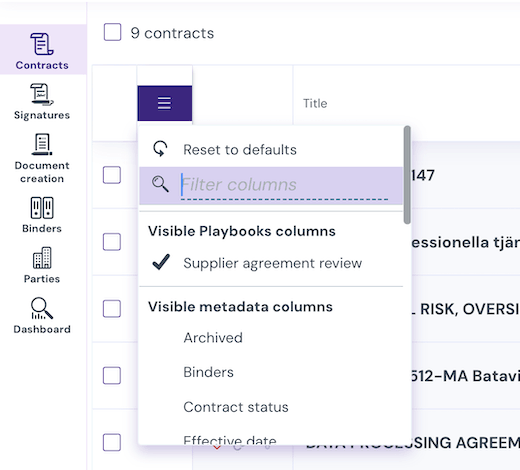
- Once you’ve selected the contracts you want to include in your report, click More in the bulk toolbar and select Download xlsx with current columns.
Run a playbook for multiple contracts
- Open Contracts and select the contracts you want to analyze.
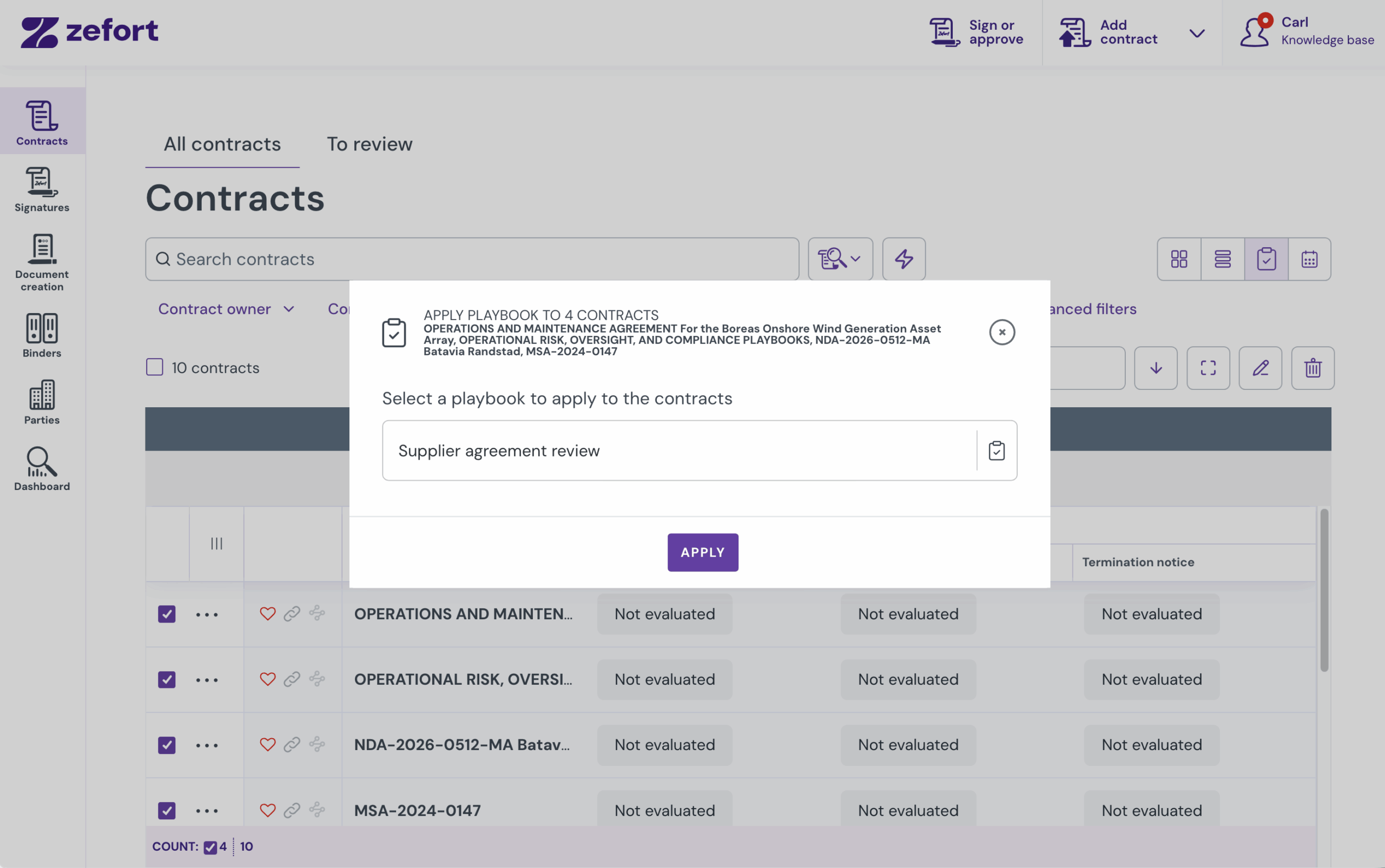
- Select Playbooks from the bulk action toolbar.
- Select the playbook and click Apply.
- Wait for the bulk task to finish.
- Open the Playbooks view or an individual contract to review the results.
Note: Bulk playbook analysis can take time when many contracts are selected. You can continue working while the task runs.