In Zefort, playbooks contain rules that help you evaluate contract compliance. Use this guide to create a new playbook and edit an existing one.
We also recommend you to read the Deep dive into Playbooks AI engine article first, to be able to write effective playbook rules and revise them if needed, in order to get better results from the AI.
Prerequisites
You need these permissions and settings before you can create or edit playbooks.
- Your account must have Playbooks enabled on your account.
- You must have Admin license + Can manage playbooks user permission.
Create a new playbook
-
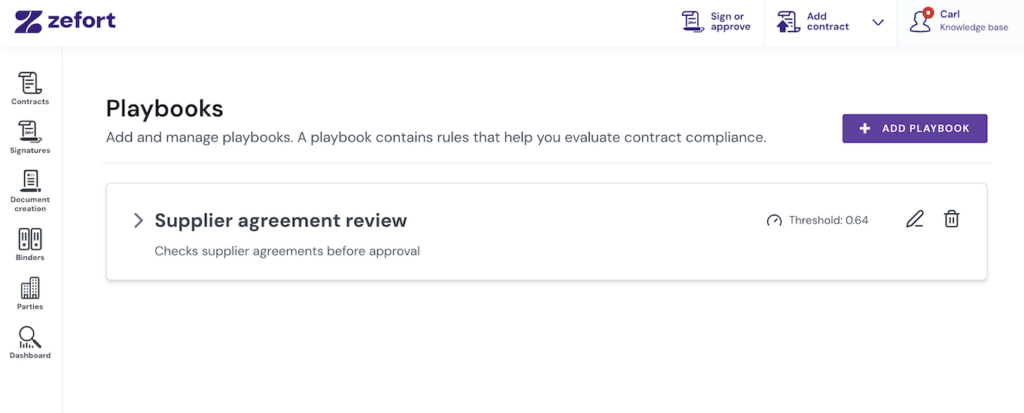
- Open Playbooks in the Zefort menu (in the top right corner).
-
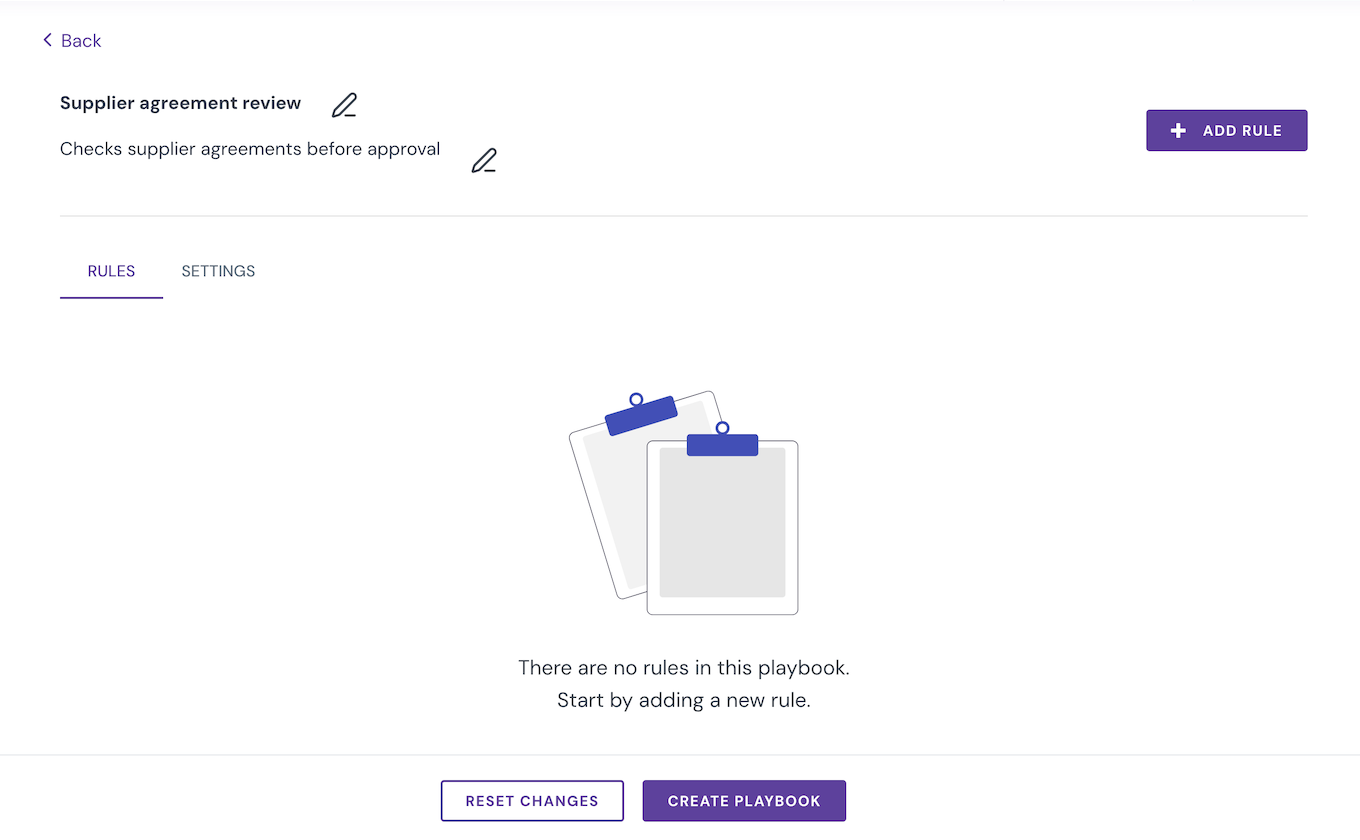
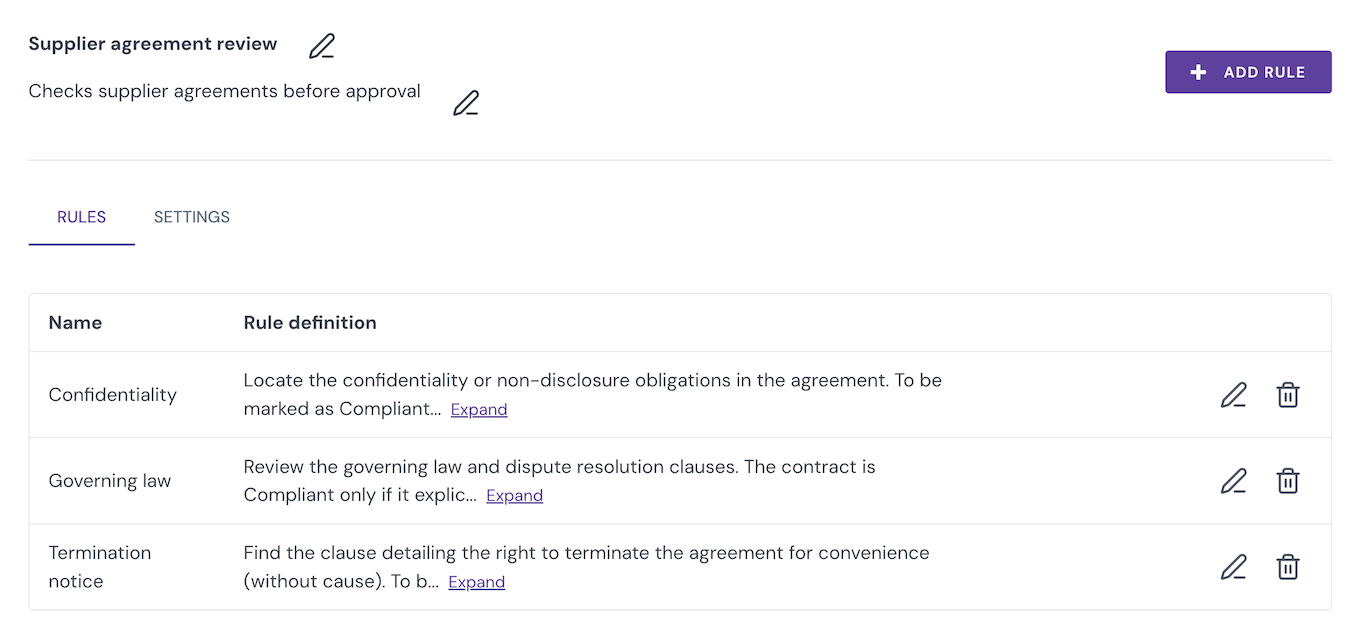
Select Add playbook. Enter a clear playbook name and add a short description if it helps other users understand the purpose of the playbook.
-
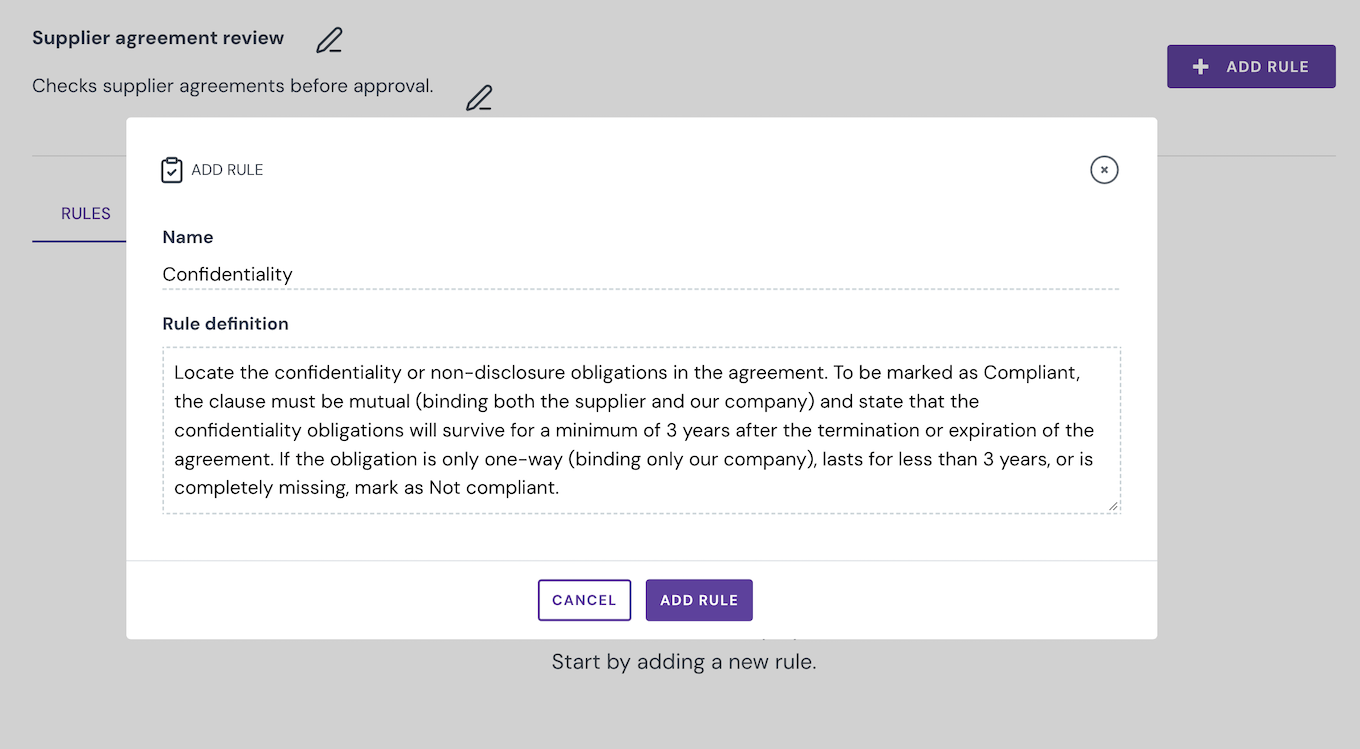
Select Add Rule and enter the rule name.
-
Enter the rule definition. Write what the contract must contain or meet. (Read tips for writing effective rules.)
-
Click Add Rule.
-
Add more rules when needed.
-
Open Settings if you need to change the evaluation threshold.
-
Click Create playbook.
- Open Playbooks in the Zefort menu (in the top right corner).
We recommend to test the rules before you use the playbook on contracts.
Change the evaluation threshold
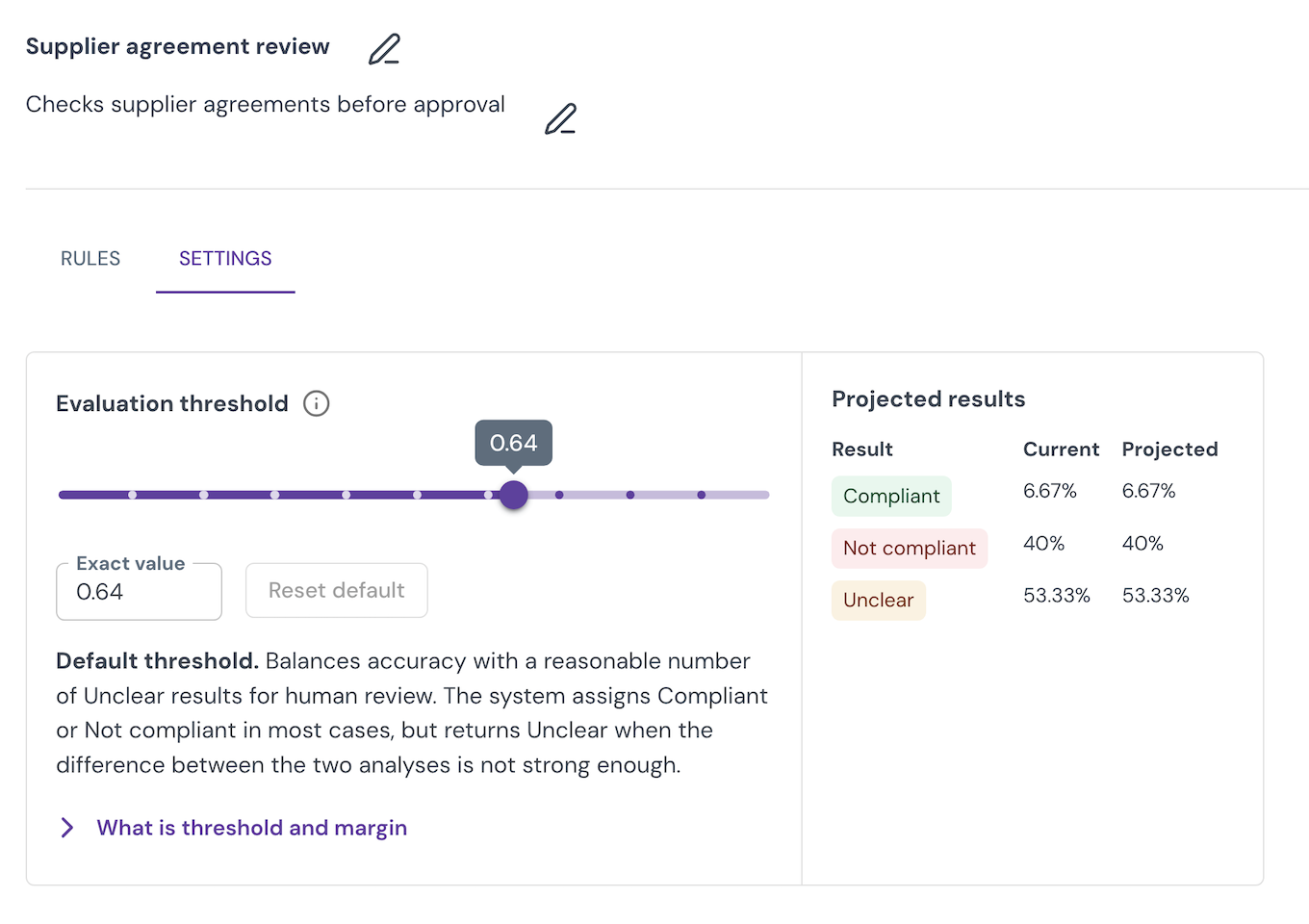
The threshold value defines how large the margin should be so that AI is allowed to automatically assign a Compliant or a Not compliant label to the contract.
- If margin > threshold → Compliant / Not compliant
- If margin ≤ threshold → Unclear (for further human inspection)
Therefore, adjusting the threshold value gives admins the flexibility to define how the AI should behave for a given Playbook. As discussed in this article, we strongly recommend admins to first select a small set of representative contracts (5 to 10) and run the playbooks on these contracts with the default threshold value as a test and inspect the results, and change the threshold only if needed to get better results.
Review projected results
When changing the threshold, you can see how this change will affect your results in the Projected results table.
- Upon creating a playbook and before running it on sample contracts, there are no numbers in this table to show, simply because AI has not evaluated any contracts yet.
- If you save a new playbook but don’t run it yet, the system displays a message: “Not enough Playbook data available for calculating projected results.“
- Once you run the playbook on sample contracts, you can come back to change the threshold and check the numbers in this table.
The table shows two sets of data:
- Current: This shows the actual percentage of Compliant, Not compliant, and Unclear results based on your existing playbook runs.
- Projected: This predicts how your results will change when you adjust the threshold.
→ If you do not modify the threshold, your projected numbers match your current numbers.
→ When you decrease the threshold, your projected percentages for Compliant and Not compliant usually increase, and your Unclear percentage usually drops.
→ When you increase the threshold, your projected percentages for Compliant and Not compliant usually decrease, and your Unclear results usually go up.
Edit a playbook
- Open Playbooks and select the edit icon for the playbook.
- Update the name or description if needed.
- Use the Rules tab to add, edit, or delete rules.
- Use the Settings tab to adjust the evaluation threshold if needed.
- Select Save changes.
You can select Reset changes before saving if you want to discard your pending edits.
After you save
The playbook is available for contract compliance checks, see the instruction Analyze contracts with playbook.