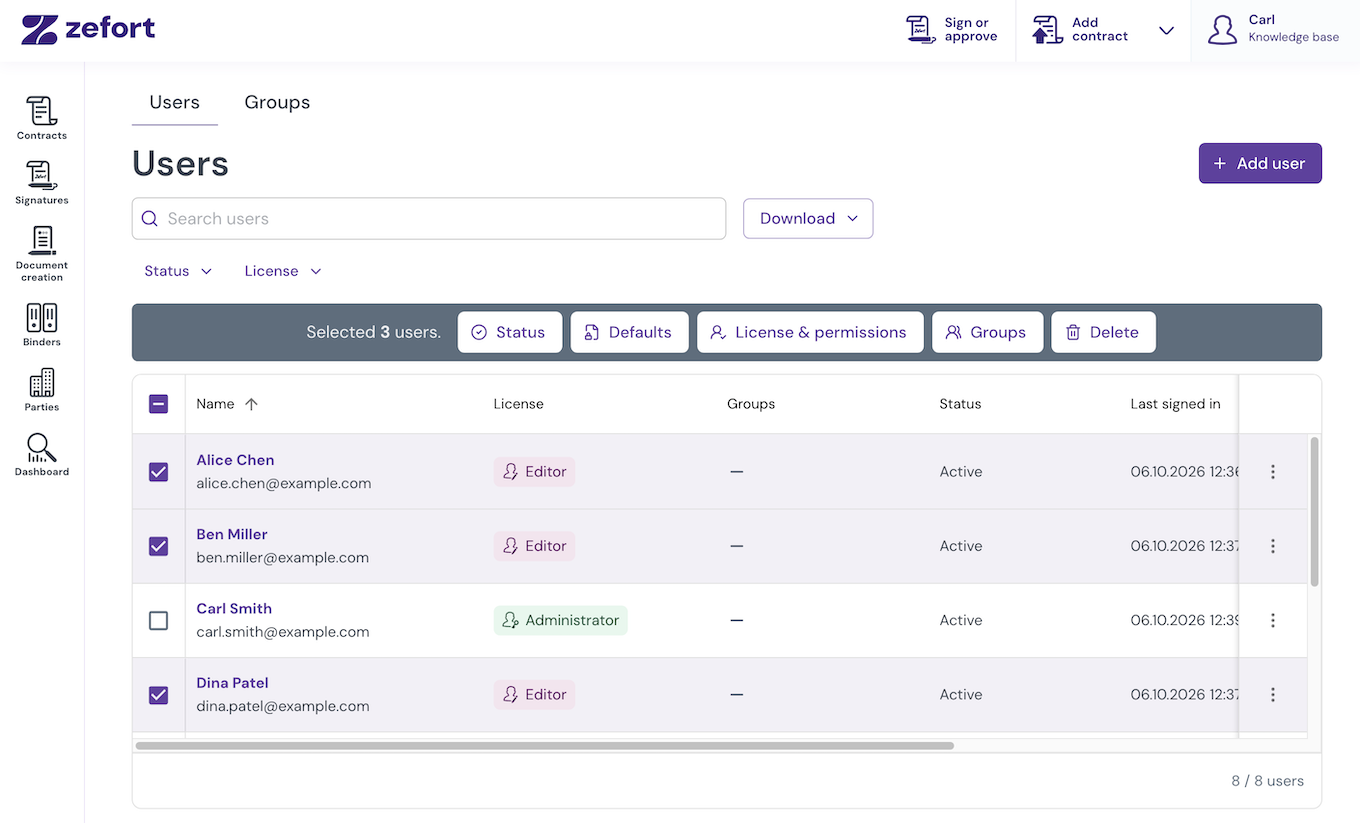
In Zefort, you can edit several users from the Users view when the same change applies to all selected users. Use bulk user actions to change status, defaults, licenses, permissions, group memberships, or to delete users.
Prerequisites
You need these account settings and permissions before you can edit multiple users.
- You must have an Admin license.
- You must have user permissions Can manage users and groups and Can perform bulk operations.
Note: Some actions are blocked when your own user is selected. Deselect yourself before you change status, change license and permissions, remove users from groups, or delete users.
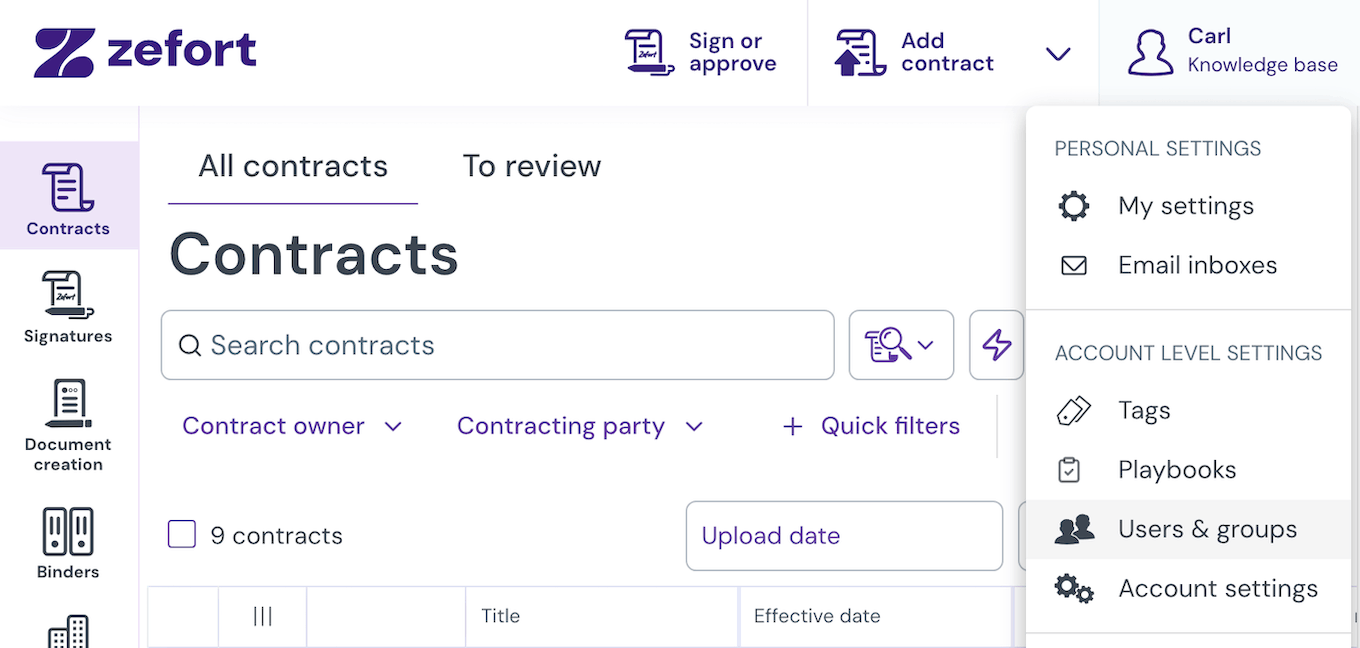
Path: Zefort menu > Users & groups > Users
Change status for multiple users
- Go to Users and select the users you want to update.
- Click Status in the bulk action toolbar.
- In the User status dropdown menu, select User is active or User is inactive.
- Click Apply.
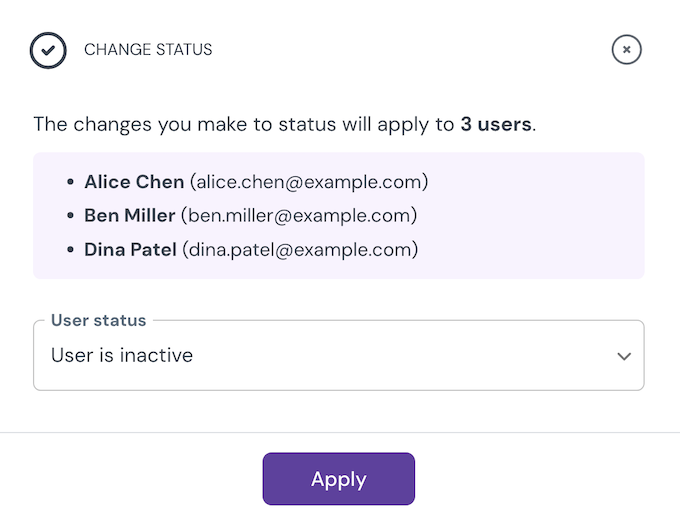
Note: Bulk status updates only apply to Active and Inactive statuses. System processes automatically set other status values, such as Pending invitation or Pending deletion.
Warning: Setting users inactive prevents those users from signing in. If your update includes administrator users, review the confirmation carefully before you continue.
Change defaults for multiple users
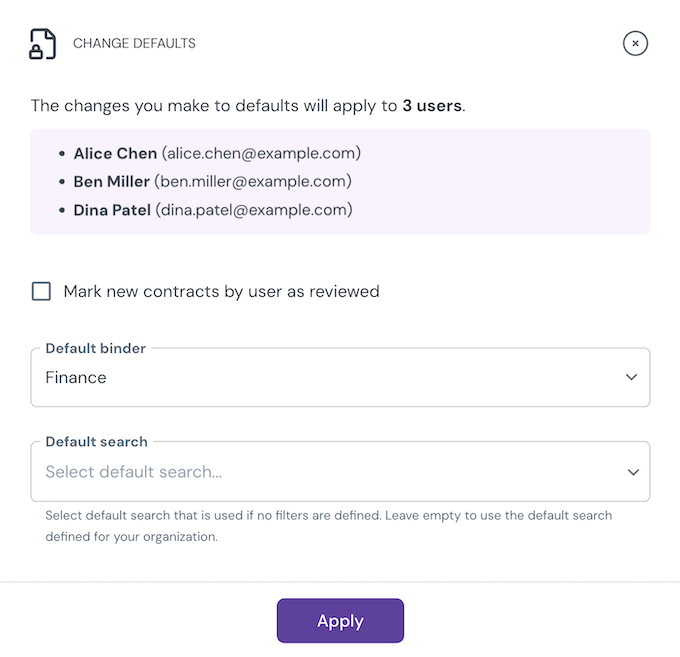
- Select the users you want to update and click Defaults.
- Adjust default settings as needed. Leave any field unchanged if you want selected users to keep their existing individual settings.
- Mark new contracts by user as reviewed: check this box if these users’ contracts should skip the review phase
- Default binder: Select a binder to add new contracts uploaded by these users. You can only assign a binder that all selected users have permission to access.
- Default search: Select a saved search to give these users a shared starting view on contracts desktop.
- Click Apply.
Update license and permissions for multiple users
- Select the users you want to update and click License & permissions.
- Select a new license type to apply to all selected users, or leave the field unchanged to keep existing licenses.
- Select the permissions you want to grant or remove across the selection.
- Click Apply.
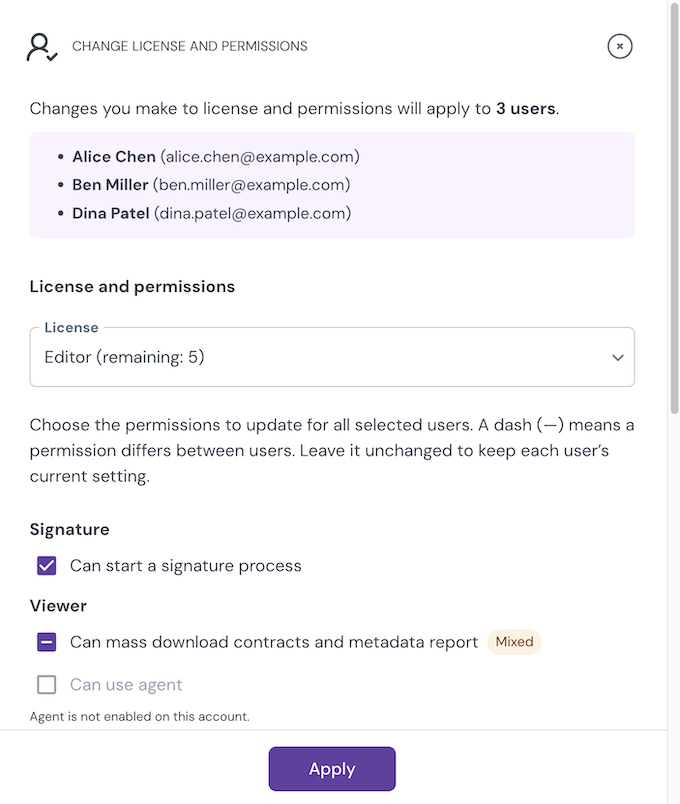
Notes:
- A mixed permission label indicates that selected users currently have different settings. Leave the field unchanged to preserve existing permissions.
- When you select users with different licenses, you can only grant permissions supported by the lowest license level. For higher level permissions, you can either keep existing settings (labeled Mixed) or remove the permission from users who currently have it.
- License updates will not complete if your account lacks available seat licenses.
Warning: Downgrading a license automatically revokes permissions that the new license level does not support.
Manage group memberships for multiple users
- Select the users you want to update and click Groups.
- Select either Add to group or Remove from group tab.
- Select one or more groups from the list.
- Click Add to group or Remove from group to confirm.
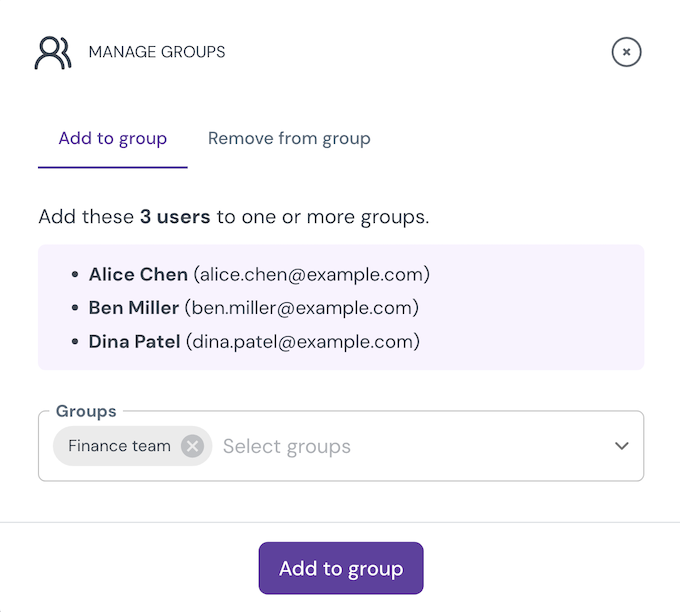
Note: If your organization provisions groups from an identity provider (IdP), identity provider syncs may overwrite manual group adjustments later.
Delete multiple users
Warning: Deleting users is permanen. The selected users are removed, and ownership, access rights, and responsibilities are transferred to the replacement owner.
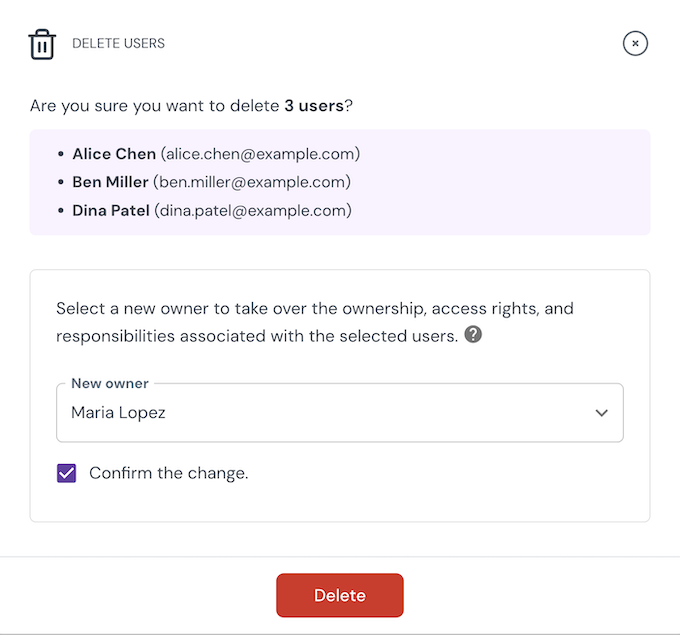
- Select the users you want to delete and click Delete.
- Review the selected users and select a replacement owner.
- The new owner automatically inherits contracts, pending e-signs, reminders, public inboxes, contract-owner assignments in forms, and integration contract owner assignments. If a deleted user is the only person with full access to a binder, the replacement owner also gains full permission to that binder.
- Select Confirm the change.
- Click Delete.
After you apply a bulk change
Bulk changes run as a background task. You can continue working while the task runs. When the task finishes, refresh the browser page if the Users view has not updated automatically.