Floating licenses allow multiple people in your organization to access Zefort without needing a dedicated license for every individual. The total number of floating licenses on your account dictates exactly how many floating users can be logged in at the same time.
For example, imagine your account has two floating licenses, but you add 10 people as floating users. This means any two of those 10 people can log in at the same time. If a third person tries to log in, they get an error message. They can access the account later, as soon as one of the active users logs out.
Difference between regular and floating users
A regular user can log in whenever they need to. A floating user can log in only when a floating license is available. Beyond the login process, both user types work the same way. You manage user permissions and binder access for floating users exactly as you do for regular users.
Note: Signing contracts never takes up an active seat. Floating users can always log in to the Zefort Sign portal to complete signatures without using a floating license.
Choose the right license for your team
Think of a floating license like a shared company car. If you only need to run a quick errand once a week, it makes sense to share the keys. However, if you drive all day, every day, you need your own vehicle.
- Floating license: Choose this for people who log in rarely and only need access for short periods.
- Dedicated license: Choose this for heavy users. If someone uses the platform frequently, works for long periods, and needs guaranteed access to your contract database at all times, they need a dedicated license.
Troubleshooting login errors for floating users
When someone tries to log in while all floating seats are occupied, the platform displays an error message. The user simply needs to wait until another user finishes their session.
However, if your users see this error frequently, you have some options to resolve the issue.
Adjust session lifetime settings
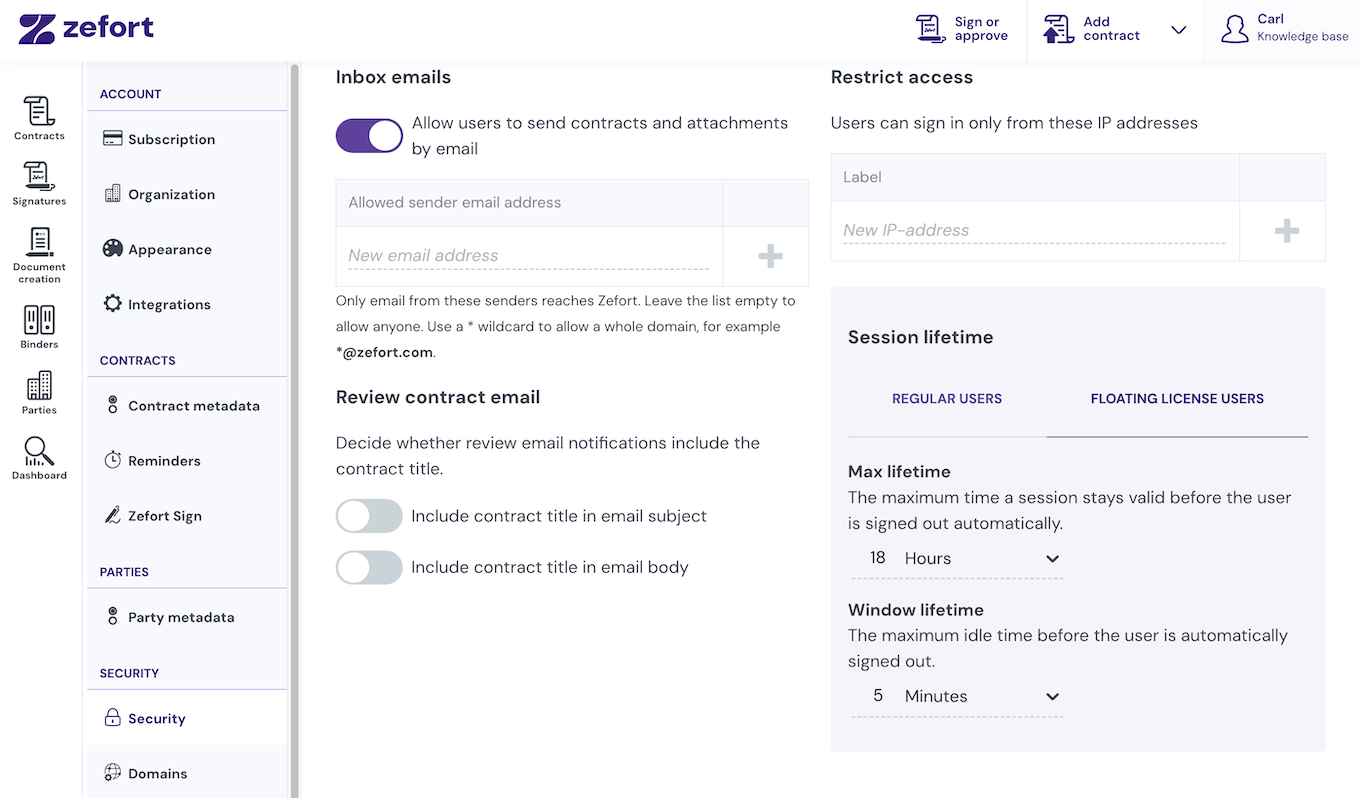
First, you can shorten the session lifetime for your floating users. This setting controls the maximum idle time before the system automatically signs a user out. A shorter session lifetime frees up licenses faster for others to use.
- Go to Account settings > Security > Session lifetime > Floating license users
- Decrease the time limit for Window lifetime
- Click Save changes to confirm.
Reallocate licenses between users
Review which team members log in most often to make sure licenses match actual usage. If a user with a floating license works in the account every day, assign them a dedicated license instead. You can then move an infrequent user from a dedicated license to a floating license.
Add more floating licenses
If adjusting idle times and reallocating seats does not stop login errors, you likely have too many floating users sharing too few licenses. You may need to add more floating licenses to your account to allow more people to work at the same time. To do this, please contact Zefort’s customer support.