You can add people to your Zefort account from user management. You can also create API-only users for integrations or add users through your identity provider. When you add a user, choose a license and review the permissions they need.
Prerequisites
- You need an Administrator license with Can manage users and groups enabled.
Add a user manually
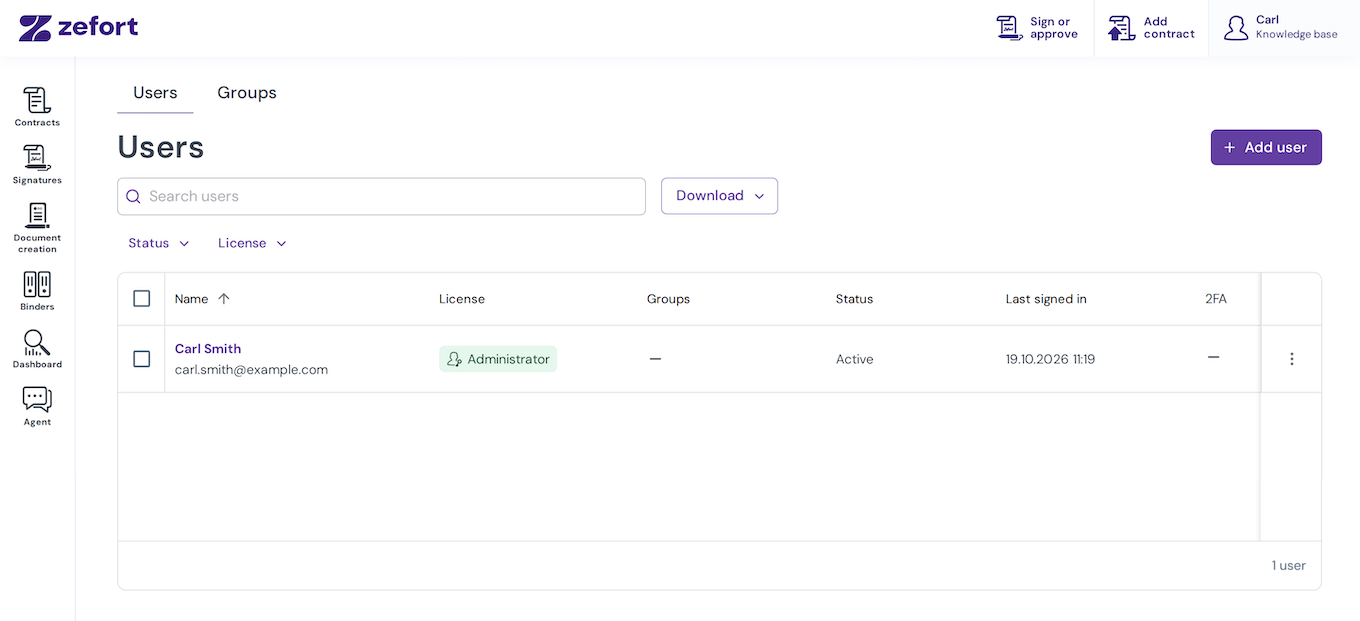
- Open Users & groups from your user menu in the top bar.
- On the Users tab, select Add user.
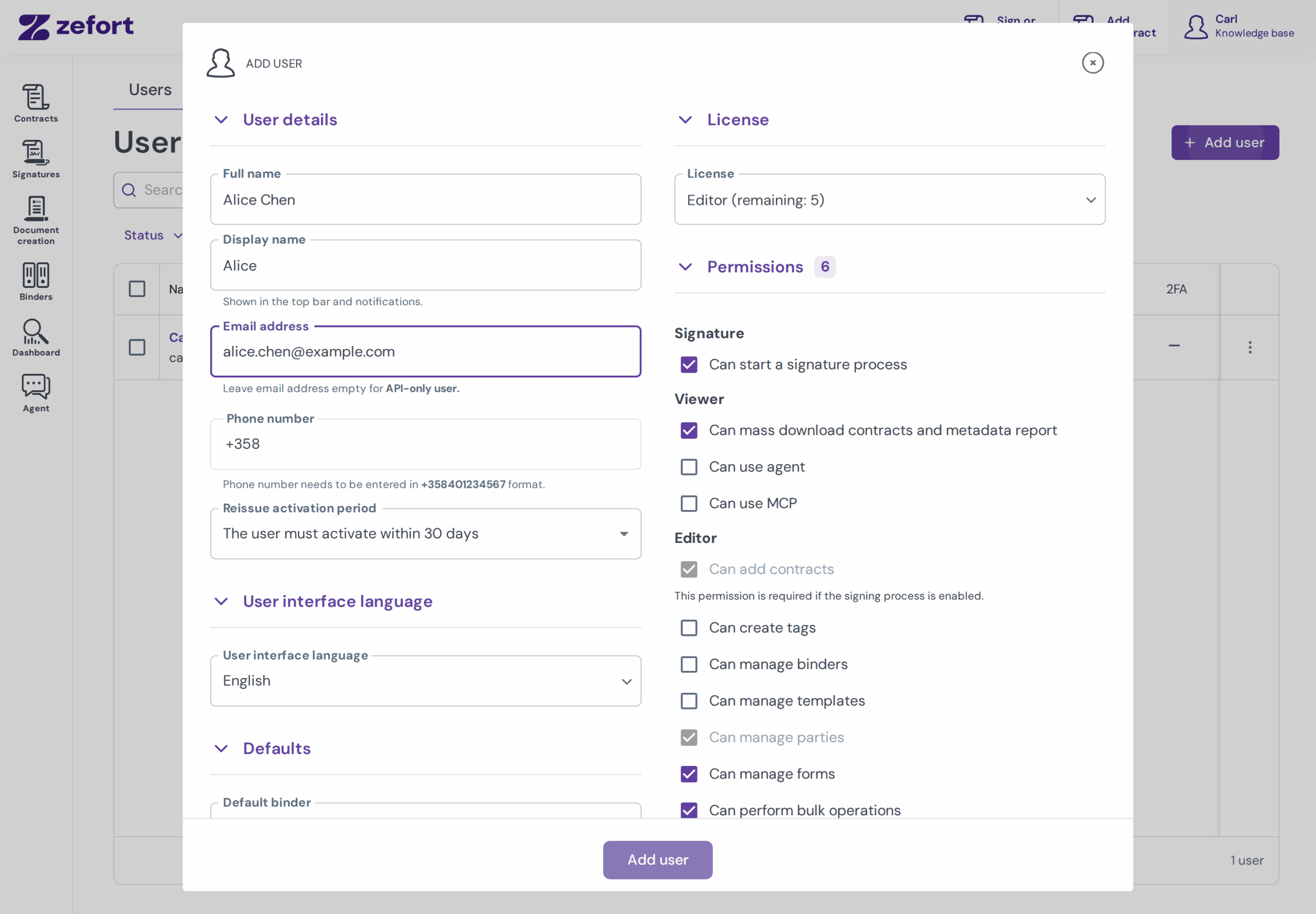
- Enter the user’s Full name and Email address.
- Optionally:
- Enter a Display name. Zefort uses it in the top bar and notifications. If you leave it blank, Zefort generates one from the full name.
- Enter a Phone number in international format. (The number is used with Zefort Sign’s SMS authentication.)
- Choose the invitation validity under Reissue activation period. (The default is 30 days.)
- Select user interface language
- Set user’s default binder. Make sure the user has the required access to that binder.
- Set user’s default search specifically for this user or leave it empty to user your account’s default search.
- Choose a License and review the Permissions. (See the user permission list below.)
- Click Add user.
Important:
- A license and feature permissions do not automatically give access to any contract or binder. After adding a user, review their group memberships and binder access.
- An administrator can manage all content only when permission Can manage all contracts and binders is enabled.
Invitation issues and special cases
- The invitation expired or was not received: First, check that there is an email address set for the user. Then resend the invitation: Under User status, select Resend activation email, choose a new activation period, and select Save. Reissuing an invitation replaces the previous link: Ask the user to use the newest link.
- The email address is already in use in this account: Open the existing user instead of adding a duplicate. If activation is pending, resend the invitation.
- The user already uses Zefort in another account: Invite the user with their existing email address. They sign in with their existing Zefort user when accepting the invitation.
- No licenses remain: Choose another suitable license with capacity, update your subscription, or contact Zefort support. Note that pending invitations also use license capacity.
- A permission is unavailable: Check the selected license, your own permissions, and the account’s enabled features. Note that you cannot grant administrative permissions you do not have yourself.
User profile activation
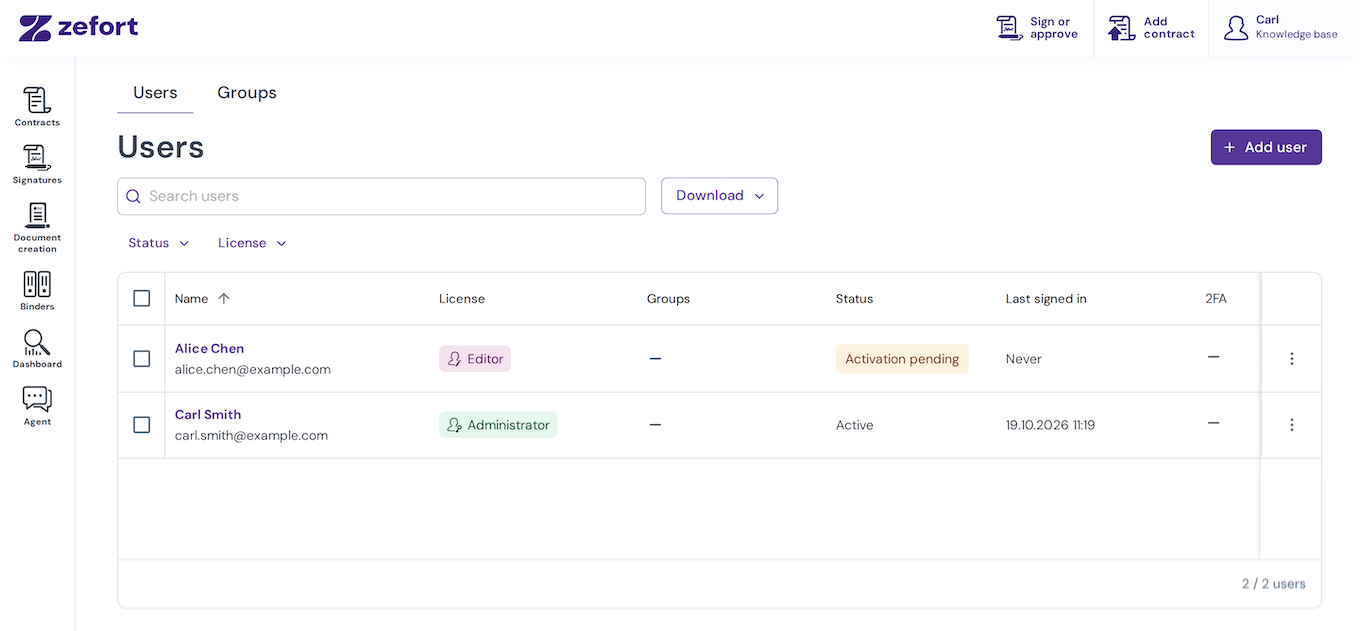
When you add a new user, they receive an activation email at the address you entered. To access their account, they click the link in the message and set their password.
In your user list, their status displays as Activation pending until they complete this step.
Create an API-only user
An API-only user gives an integration or automated process its own access to Zefort. It authenticates API requests with an API key instead of signing in to the browser interface. The user needs a suitable license, permissions, and access to the relevant contracts and binders.
See the detailed instruction: Create API users.
Add users through your identity provider
If your organization uses an identity provider (IdP), your administrator can configure user provisioning through Account settings > Integrations.
- SAML automatic provisioning: When enabled, Zefort creates a new user when they first sign in through the configured identity provider. The integration defines the default license and can use group mappings. SAML can also be configured to require users to be added manually.
- SCIM provisioning: Your identity provider creates and updates users and groups in Zefort. The SCIM integration controls default licenses and group mappings.
For IdP-managed users, coordinate license and group changes with the administrator who manages provisioning. The integration’s provisioning rules may apply changes again.
See more detailed instructions:
- Setting up single sign-on (SSO) with OpenID Connect (OIDC)
- Configure single sign-on (SSO) with Entra ID (Azure AD)
- Configure user and group provisioning with SCIM and Azure AD
- Managing user licenses via SCIM
Which permissions are available with each license?
A license determines which permissions you can enable. Permissions are not all enabled automatically. Review the checkboxes when adding each user because your account’s defaults preselects some permissions.
Available means you can enable the permission when the account feature and your own permissions allow it. Included means the permission is fixed for the Signer license. N/A means the license does not support it.
| Permission | Signer | Viewer | Editor | Administrator |
|---|---|---|---|---|
| Can start a signature process | Included | Available | Available | Available |
| Can add contracts | Included | Included with permission “start a signature process” | Available | Available |
| Can mass download contracts and metadata report | N/A | Available | Available | Available |
| Can use agent | Available | Available | Available | Available |
| Can use MCP | Available | Available | Available | Available |
| Can use AI Chat | N/A | Available | Available | Available |
| Can create tags | N/A | N/A | Available | Available |
| Can manage binders | N/A | N/A | Available | Available |
| Can manage templates | N/A | N/A | Available | Available |
| Can manage parties | N/A | N/A | Available | Available |
| Can manage forms | N/A | N/A | Available | Available |
| Can perform bulk operations | N/A | N/A | Available | Available |
| Can manage users and groups | N/A | N/A | N/A | Available |
| Can manage account settings and tags | N/A | N/A | N/A | Available |
| Can manage custom metadata | N/A | N/A | N/A | Available |
| Can manage all contracts and binders | N/A | N/A | N/A | Available |
| Can manage playbooks | N/A | N/A | N/A | Available |
License exceptions and feature requirements
- Signature creation requires contract creation. Enabling permission Can start a signature process also enables Can add contracts.
- Account features still apply. Signature processes, templates, forms, playbooks, Agent, MCP, and AI Chat depend on the relevant features being enabled on the account.
- AI Chat has its own license allocation. If all AI Chat licenses are assigned, you cannot grant it to a new user until capacity becomes available.
- Floating licenses: If your subscription includes them, you can choose floating viewer, floating editor, or floating administrator. A floating user can have the same permissions as regular users. Read more about floating users.
Set default permissions for new users
You can choose which permissions are enabled by default when new users are added. Use these settings to give new users a consistent starting point, then adjust permissions for each person as needed.
You need admin license and “Can manage account settings and tags” permission to change these settings.
- Go to Zefort menu > Account settings > Organization > Users
- Turn the default permission switches on or off.
- Click Save changes.
Notes:
- These settings apply only to new users: changing these defaults does not update existing users’ current permissions. To update multiple existing accounts at once, manage users in bulk.
- Defaults apply only where the user’s license supports the permission. They do not grant administrative permissions such as managing users or account settings.
- AI Chat also requires available AI Chat license capacity.